My daughter was using Google Sheets to track some of her reading summaries and asked me “How do you remove the gridlines?”. I’ve done this before so I confidently said let me give you the instructions so you know how to do it. I opened a blank sheet on Google Sheets and then clicked on … oops I forgot where the setting was located.
I then spent a good 5 minutes clicking on every menu item to see where the option to remove the gridline was located and then I finally found it. I decided to write down the instructions in case I forget and I also created a video. Here are the instructions on how to remove the gridlines in Google Sheets. What threw me off is that the name in the menu appears to have changed. Keep reading and I’ll explain further down.
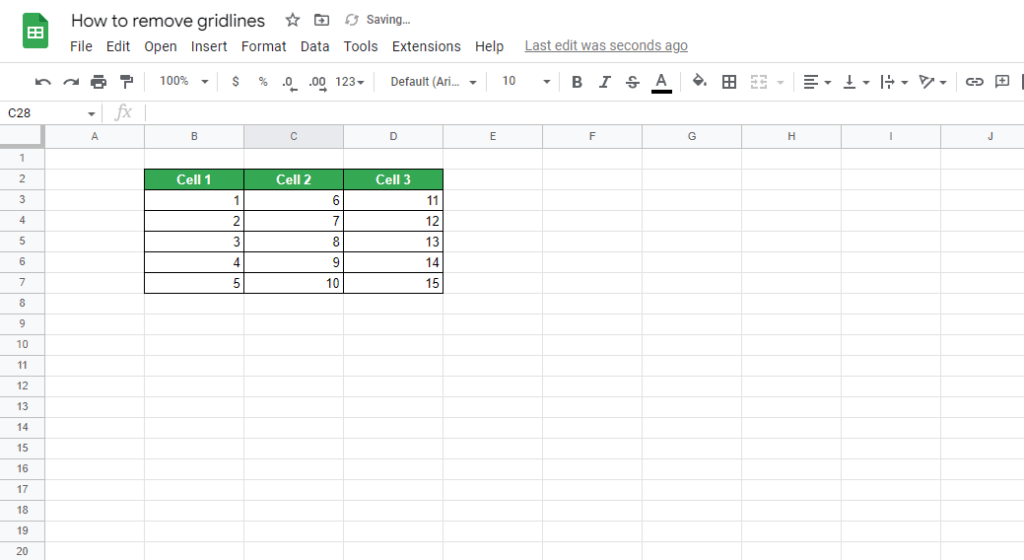
- Open a Google Sheets. Here’s how the sheet appears with gridlines
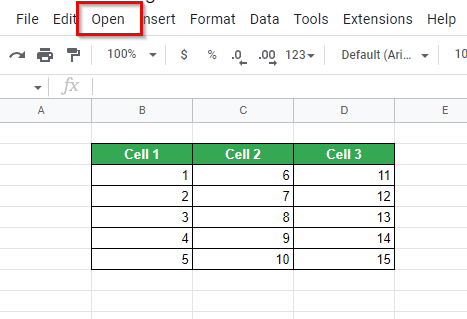
- In my case in the menu click on Open (or View). This is what threw me off. I wouldn’t have clicked on Open because it didn’t make sense to have it there but it’s possible I’m using a version of Google Sheets with a bug. I tried using another Gmail account and that definitely has View instead of Open.
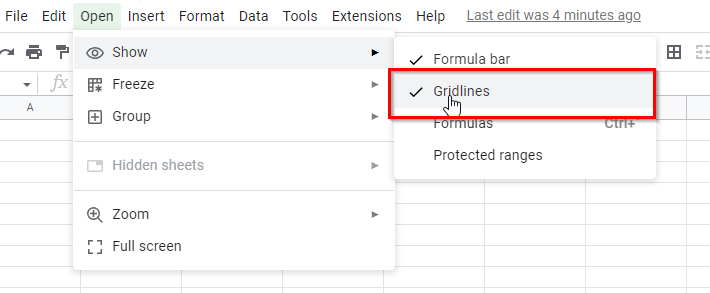
- Click on Show and then Gridlines (there shouldn’t be a tick next to it if it’s off)
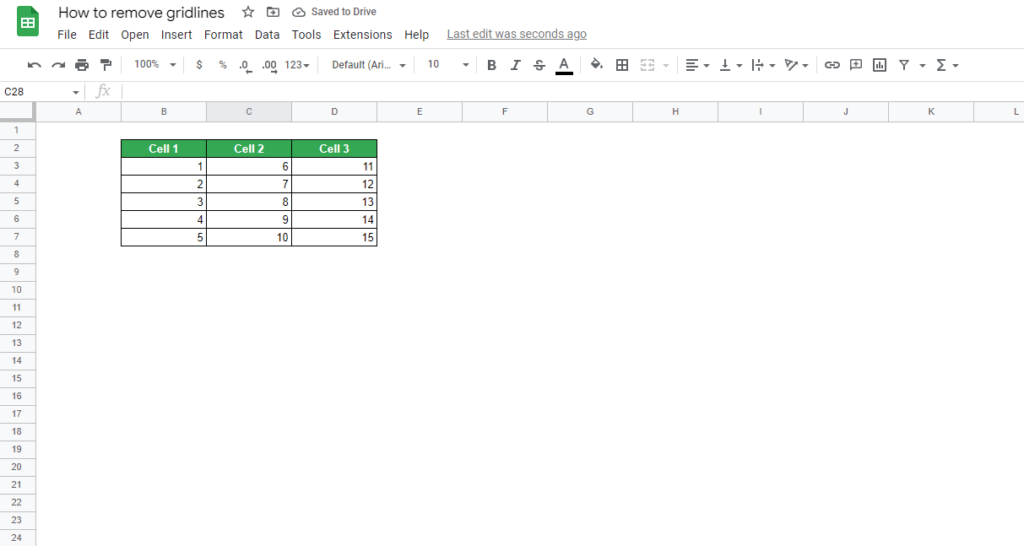
- The Google sheet will now display without gridlines in the background.
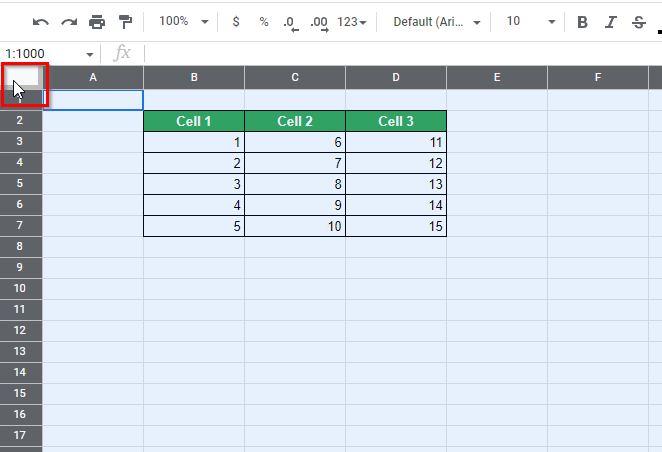
- Another option you can use is to select the entire sheet or an area where you don’t want to have the gridlines and set the colour of the border to white. To do this click on the corner of the sheet, this selects all the rows and columns on the sheet.
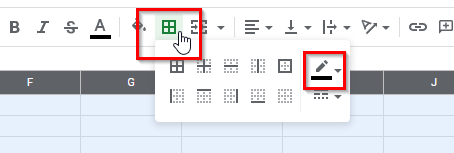
- Select the border icon and then click on the border colour
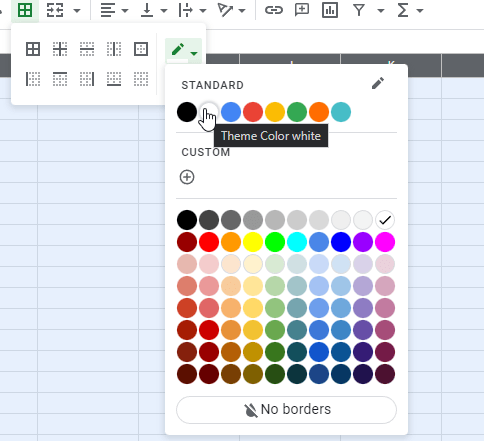
- Select the colour white
- Then select the border type All Borders
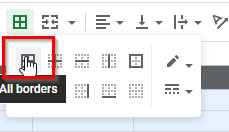
- This will also make any existing border colour to be changed to white
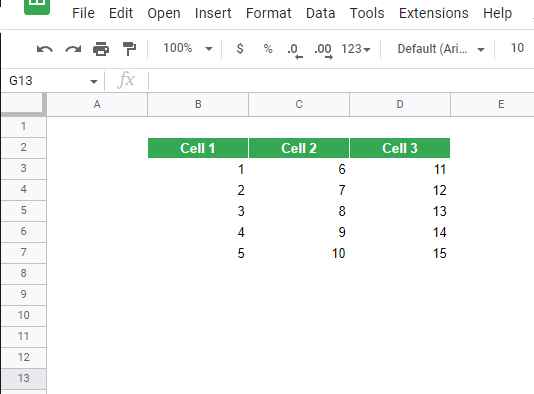
You can also select an area and just make that white as well like in the below example and in the video.
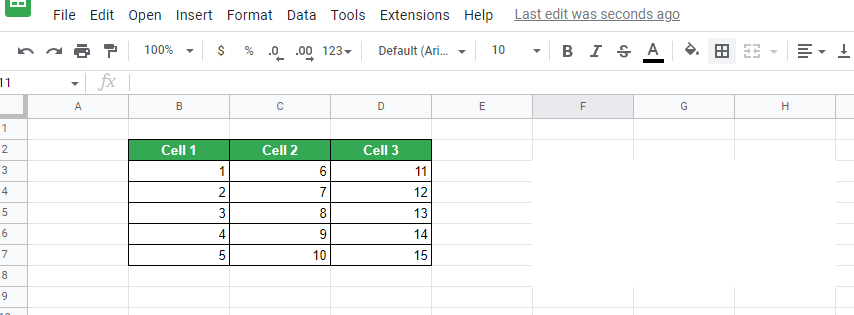
Here’s a video showing HOW TO REMOVE GRIDLINES IN GOOGLE SHEETS