Virtual Desktop is a feature that has been available since Windows 10 and I’ve just started to recently use this feature in Windows 11. I started using this feature because of the option to create a virtual desktop when streaming, video recording or when on a video conference. Using this feature simply means, that you won’t accidentally open a window that people are not mean to see. For example, if you had your email program open and you accidentally clicked on this when finding the app you want to share.
You probably have accidentally clicked on the virtual desktop icon on the taskbar but if you want to create a new virtual desktop click on the icon that looks like this (next to the search button)
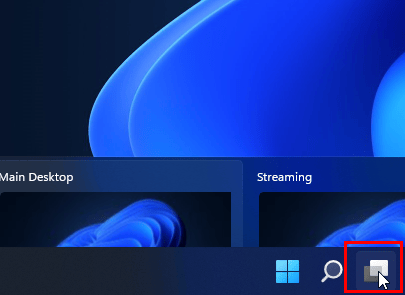
Click on New Desktop
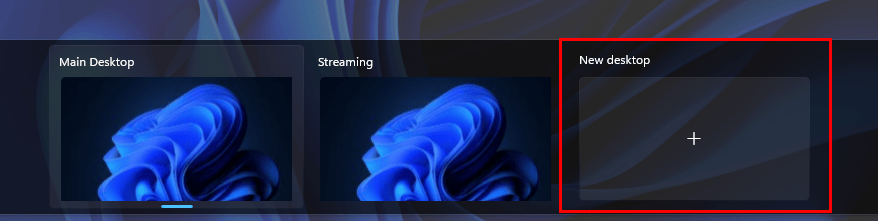
A new virtual desktop will open and you can open different programs and it will not display on the main desktop or any other virtual desktop. Now, if you restart the laptop, the app and programs that you had open on each virtual desktop will no longer be open to the virtual desktop as doesn’t remember any of the settings.
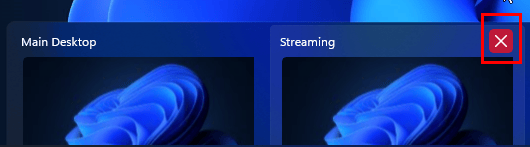
If you want to remove any of the virtual desktops, simply click on the x on the top right-hand corner
Here’s a video to show you how to HOW TO USE THE WINDOWS 11 VIRTUAL DESKTOP