If you’ve upgraded to Windows 11 and are looking for the clock timer, stopwatch, alarm or world clock then you need to read this article. I’ve previously published a few articles related to Windows 11 and you can read them here: Windows 11 articles.
Now, by default, when you open the clock application you will see the focus page. Here’s an example:
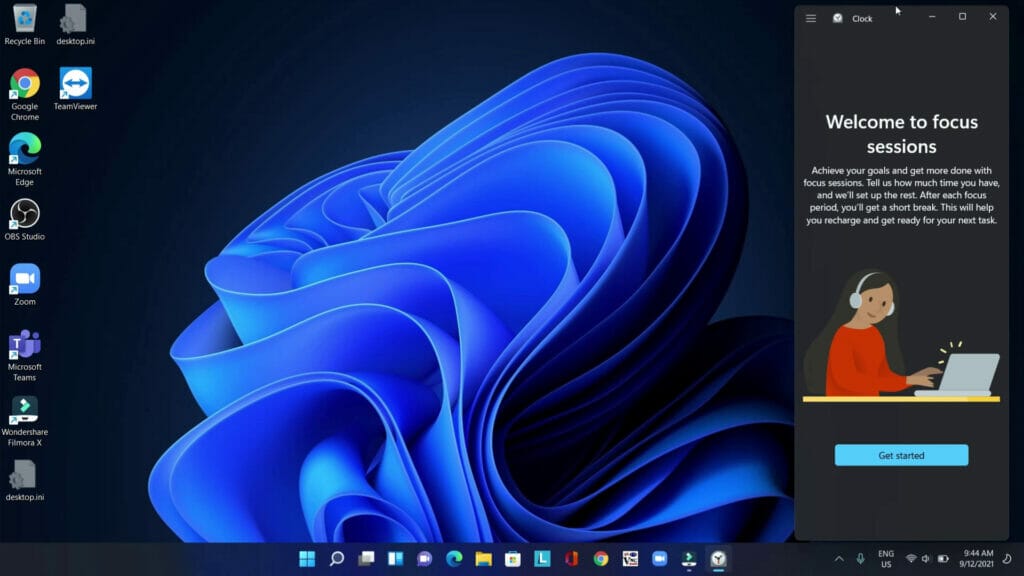
When I opened the clock app on my laptop I saw this and was totally confused. As you can see from the above image, I couldn’t see where the timer or stopwatch was located. After some playing around if you extend the window of the clock app the extra tabs were visible.
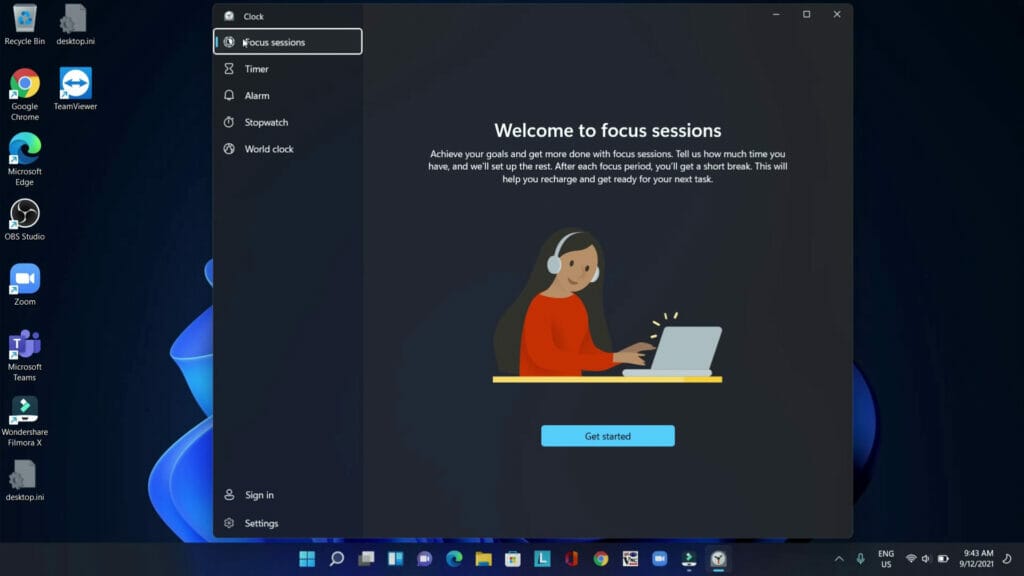
When you expand the window, you will see the timer, alarm, stopwatch and world clock tabs on the right-hand side.
It appears the clock app window is responsive and when you expand or shrink the window then you will see different options and menus. When you close the clock app window it will save and remember the setting. The next time you open the clock app it will display the last setting that was used. I prefer to keep it on the stopwatch or timer tab.
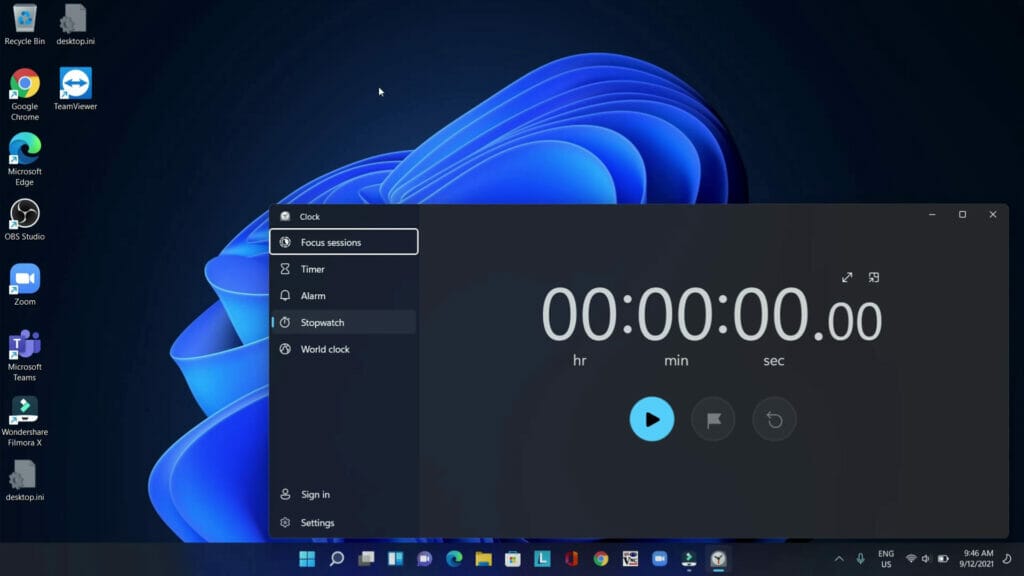
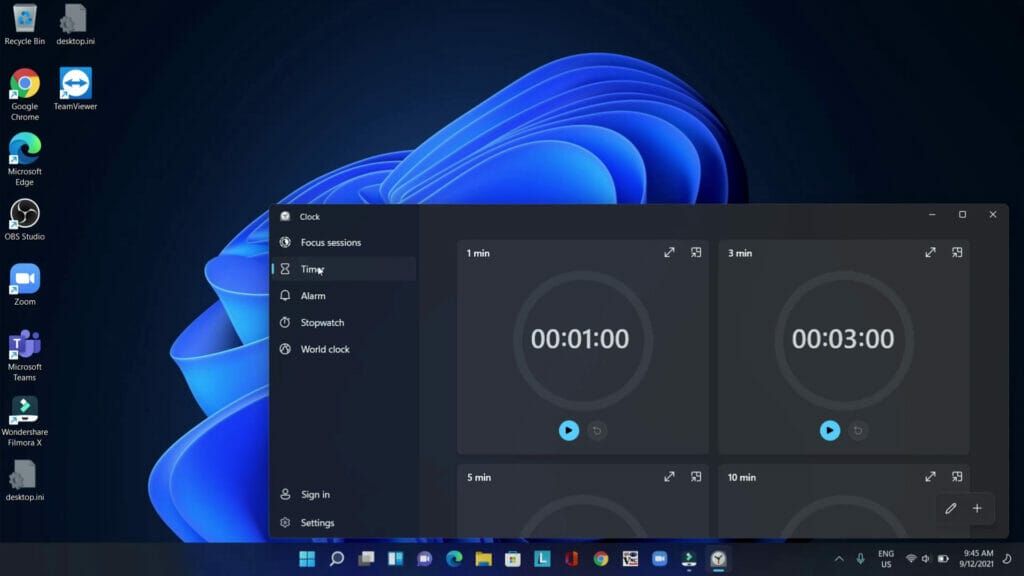
You can watch the video here describing how to change the clock app settings: