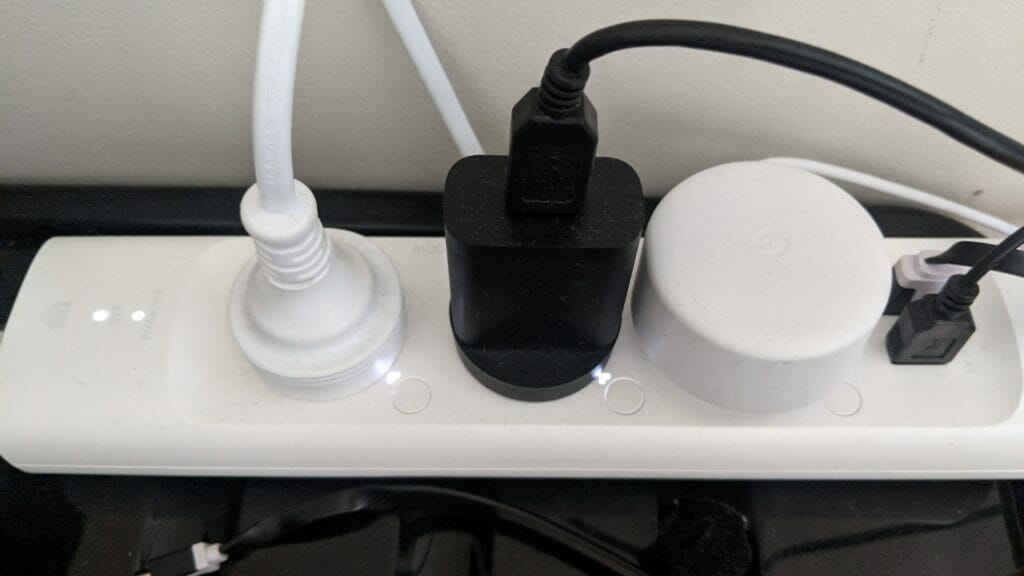
Home automation is something I’ve been keen on using throughout the house. I’ve been a Xiaomi fan for years and have several devices connected to Wifi and the Internet. I decided to add a TP-Link Kasa Smart Wifi board model KP303 to the home automation ecosystem and it’s working well with Google Home. I have 3 of these in the house, one in each of the kid’s bedrooms and one in the main bedroom.
You can buy one of these boards from here:
In this article, I’m going to show you how to set up the Kasa Smart Wifi board and connect it to Google Home. Once it’s connected to Google Home you can use voice commands such as “Hello Google. Switch on Marco’s bedroom light.” or “Hello Google. Switch on Marco’s power plug 2.”
The Kasa Smart Wifi power board has 3 power outlets and 2 USB power ports. The power ports only support 5 V 2.4 A each and total and the max power loading is 10A 2400W. Each power outlet can be controlled individually via the power button, via the app or via voice control through Google Home. Unfortunately, the downside is you cannot control each USB port via the app or the board.
Once you unbox the power board, you can connect it to the WiFi 2.4Ghz network as it only supports IEEE 802.11b/g/n. You can install the Kasa mobile app if you have android 5+ iOS 10+.
Here are the steps to add the Kasa Smartboard to the Kasa mobile app:
- Add the device by pressing + button
- Select add device
- Select Smart plugs
- Select Smart Plugs Strip KP303
- Check power startup strip
- Open settings
- Connect to mobile to TP-LINK device
- Already connected
- Connect to WiFi network
- Setup ports using name icons
- Configured and connected
- Firmware update required and reboots
- The list displayed of all devices and ports
- Testing plugs
- Set timers for ON/OFF
- Stats and Runtime for each port
You can watch the below video for a more detailed view of the unboxing and configuring the strip.
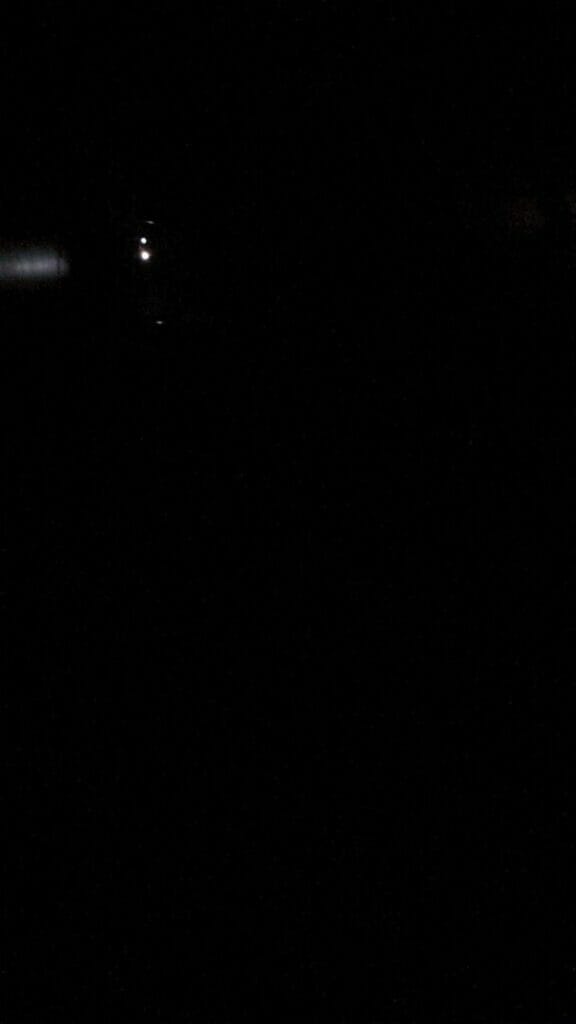
One thing I didn’t like is that the indicator power light is too bright at night. There is an option to disable the status LED light for each port which helps, but there’s still the indicator power light which is pretty bright. Here’s a picture I took at night: