There are two email hosting platforms that I use. One is Google Gmail (I am on the old free G Suite plan which is going to end soon) and the other is Zoho Mail. Both are great email hosting solutions and Zoho Mail has its own Windows client you can install on your laptop. You can access both platforms using a web browser, on your mobile phone app and also on a desktop app. With the Zoho Mail desktop app, it doesn’t consolidate all the emails from the different accounts into one mailbox. You can manually switch to the email account you want to check which can be a hassle at times if you manage multiple emails.
I recently encountered an issue where I was trying to activate a new Instagram account using a new Zoho email. During the Instagram activation process, an email from Instagram with the code will be sent to the registered email address. Since the Zoho email was new, the inbox was empty and I just kept waiting for the Instagram activation code email but I never arrived. I even checked the spam folder and it wasn’t there.
As I was looking around, I noticed a folder called Notifications.
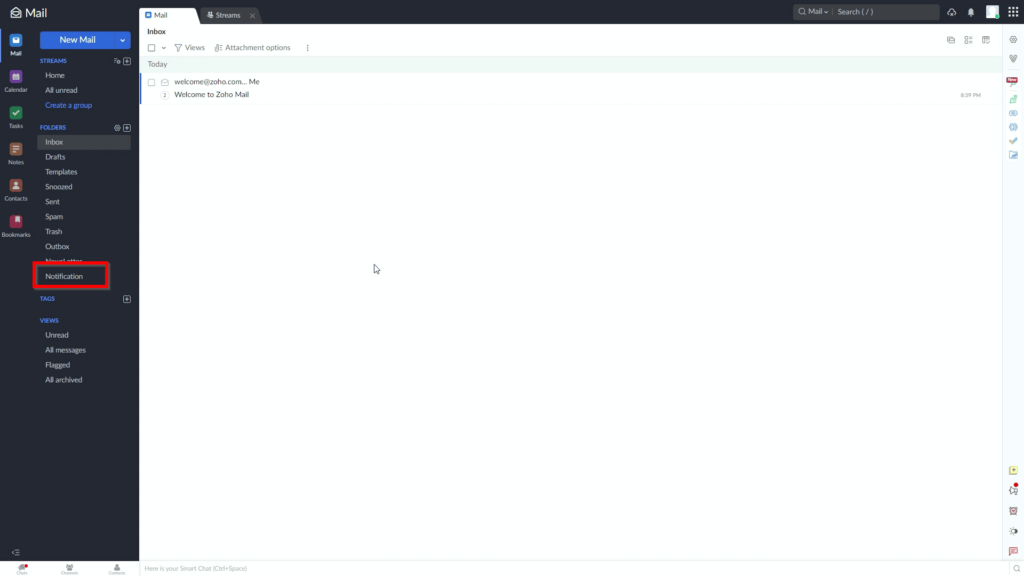
When I clicked on the Notification folder, I saw the Instagram emails.
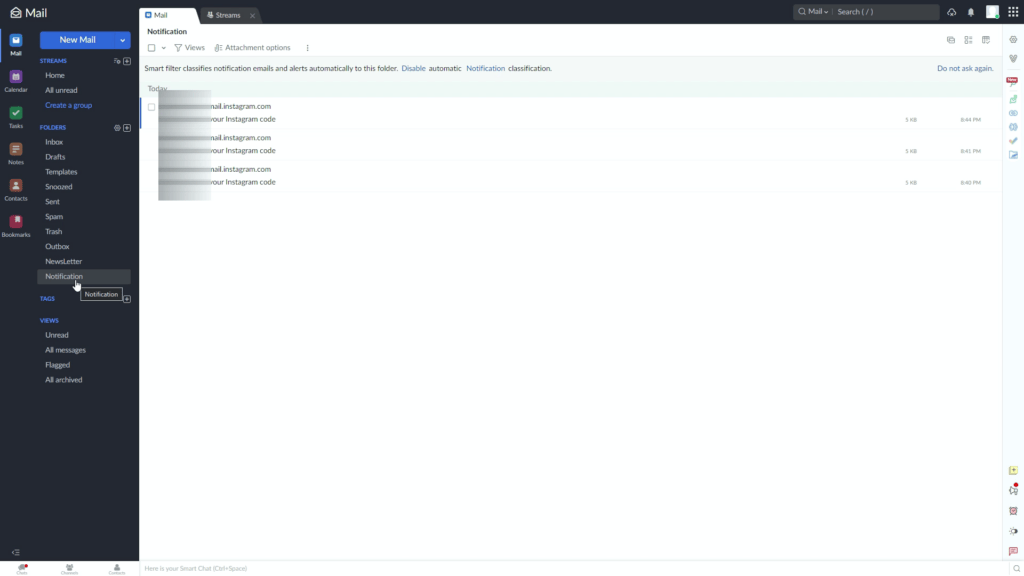
Why was Zoho Mail doing this? Upon further investigation, I found that there was a Smart Filter that categorised the Instagram emails as a notification and automatically moved the emails to the Notification Folder. To disable this feature you can disable the Smart Filter or just delete the rule. To do this follow these simple instructions:
- Login to your Zoho Mail account
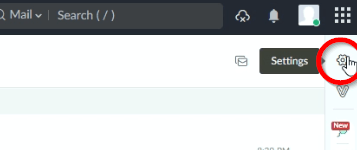
- Click Settings
Click on Smart Filters
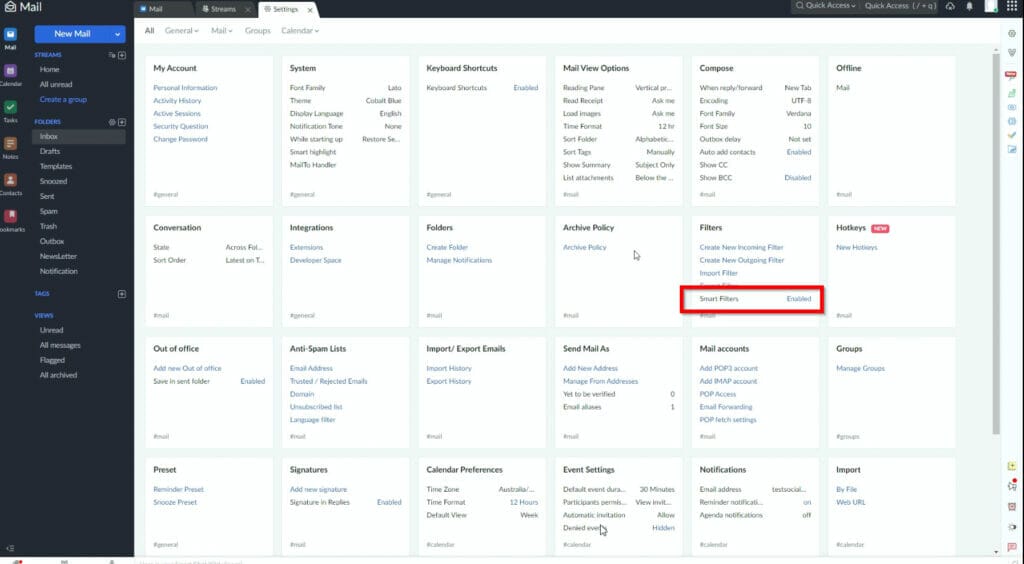
Click Disable and this will disable all the Smart Filters listed
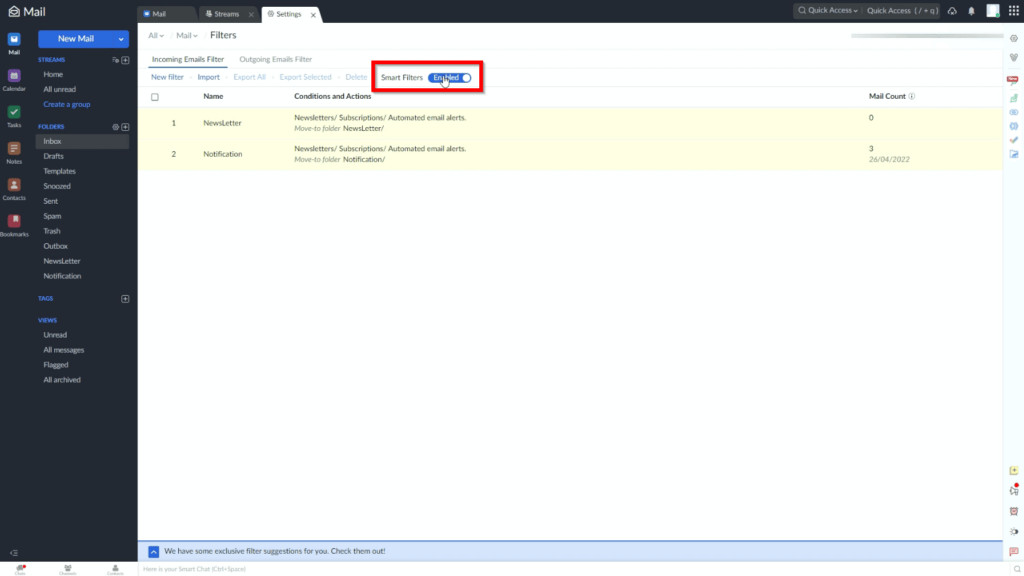
The rules also show how many emails were filtered based on the conditions. You can delete these rules as well if you still want the Smart Filter to be enabled.
You can also watch this video and hope this helps.