If you are using Gemini and NotebookLM and you want your outputs to use Australian English spelling and terminology, there is a simple change you can make to your Google account that helps guide both tools in the right direction. In this guide I will take you through the exact steps to update your account language settings, then I will show you how to craft a clear prompt inside NotebookLM so that your infographics, slide decks, audio overviews and video overviews follow Australian conventions. I will also share a few practical checks that I use to confirm the change has taken effect in Gemini and NotebookLM.
Before we begin, a quick note from my own testing. Changing the default language in your Google account is a strong signal, but it does not guarantee that every Google product will immediately switch spelling and terminology. Think of it as one important step among several. When combined with a good prompt inside NotebookLM, and a simple verification check in Gemini, it can make a noticeable difference to the consistency of your outputs.
Why your Google account language setting matters for AI outputs
Your Google account language tells Google services which language and region you prefer for menus, examples, date formats, and often for generated content. With AI tools this becomes more significant. When Gemini generates text it takes cues from your query, your account preferences, and sometimes your recent activity. NotebookLM in particular is sensitive to two things. Your instruction prompt and your account settings. Get these two aligned and the chance of clean Australian spelling goes up.
It helps to remember that language is not just words. It is also region specific conventions. That includes spelling, dates, money formats, and everyday terms. Australian English is close to British English in spelling, but it has its own flavour in vocabulary and idiom. If your business serves Australian clients or if you publish for Australian readers, you want your AI tools to reflect those norms by default.
Australian English versus United States English at a glance
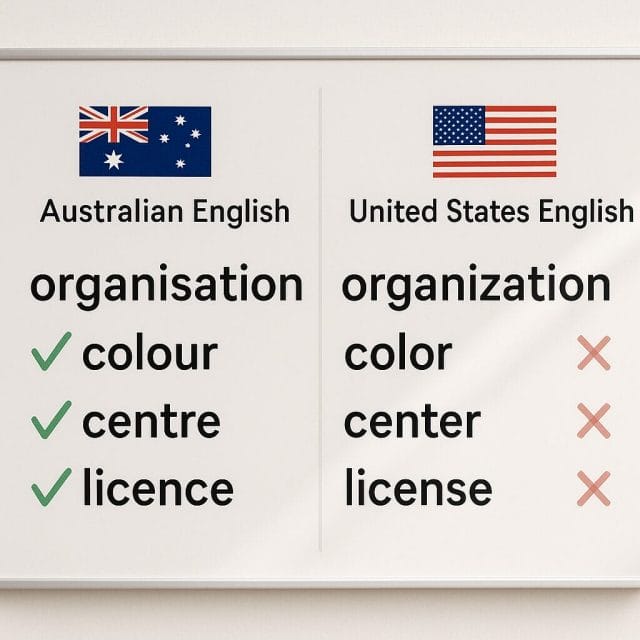
Here are a few examples I use when I check whether a system is using Australian spelling or defaulting to United States spelling. These are not exhaustive, but they reveal the difference quickly.
- Organisation, not organization
- Colour, not color
- Centre, not center
- Licence as a noun, not license for the noun. Use license for the verb
- Travelled, not traveled
- Program for a computer context can be program or programme in certain formal contexts, but Australian English usually uses program
- Catalogue, not catalog
- Cheque for a bank cheque, not check
- Analogue and dialogue, not analog and dialog
- Jewellery, not jewelry
There are other clues. Dates should appear as day month year. Quotation marks can vary by style guide, but you will often see single quotes as the default in many Australian publications. Vocabulary can also give it away. Footpath rather than sidewalk. Mobile rather than cell. Maths rather than math.
Step by step. Change the default language in your Google account
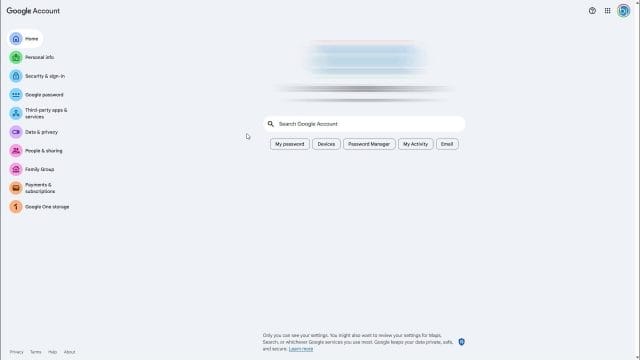
You can make the change from any web browser. The process is similar on desktop and on a mobile browser. These steps are current at the time of writing, although Google can move things around from time to time. If your screen looks a little different, look for a Language section under Personal info.
- Open your web browser and go to your Google account home. The address is myaccount dot google dot com. Make sure you are signed in with the account you use for Gemini and NotebookLM
- In the left navigation, select Personal info
- Scroll down to the section labeled General preferences for the web, then choose Language
- You will see your current default language at the top. Many accounts in Australia still show English United States as the default. Select the edit option to change it
- Type English into the search box that appears. You may see a list that includes several English variants
- Select English Australia from the list
- Save your change
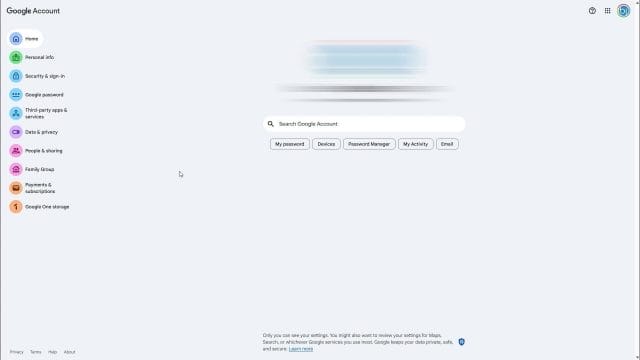
Once saved, your default language should show as English Australia. Google also allows you to add other languages. If you regularly work with content in Vietnamese or another language, you can add those as secondary languages. Your default will still be used first, unless a product forces a different language based on content or region.
What to expect after you change the language
Most of the time, the change takes effect quickly. Your Google account dashboard may refresh to show the new language. Some products pick up the change straight away. Others need a fresh session to notice it. If you do not see the change where you expect it, try the following.
- Refresh the page you are using
- Sign out then sign back in
- Open a new browser window or use an incognito window to rule out caching
- If you use multiple Google profiles in Chrome, confirm that you are active in the same profile you updated
This is especially true with AI tools that are still evolving. You may notice that Gemini adopts Australian spelling in one chat, then reverts when you ask questions that are strongly tied to United States sources. That is normal. The language setting is a preference, not a lock. You can nudge it back with the next step, where we give the tool an explicit reminder in the prompt.
How to confirm the change in Gemini
Gemini is responsive to both your account language and the words you use in your prompt. I like to run a simple test right after I change my account language.
- Open Gemini in your browser at gemini dot google dot com
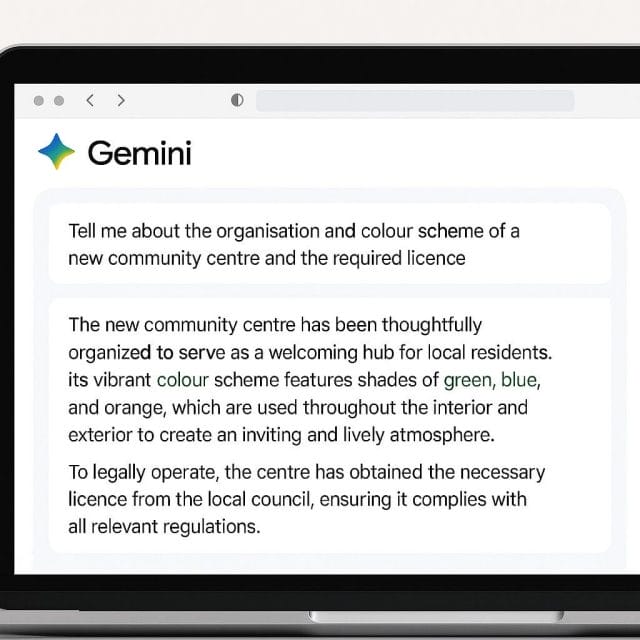
- In a fresh chat, ask a neutral question that will require different spellings. For example, ask for a short paragraph about the organisation and colour scheme of a new community centre and the required licence for events. That prompt forces several words that show spelling differences
- Read the output carefully and look for organisation, colour, centre, and licence where appropriate
If you see US spellings in your first answer, try a second message that states your preference plainly. For example. Please answer in Australian English and use British style spellings. In my tests, Gemini will usually correct itself and continue with the right spelling after that reminder. If you start a new chat later, the account language setting helps keep it consistent without you having to restate the reminder every time.
NotebookLM needs a clear style guide in your prompt
NotebookLM can create several types of output from your sources. It can summarise, build infographics, produce slide decks, generate an audio overview, or even present a video overview. Because it can switch modes, I have found it useful to include a short style guide in the prompt that tells NotebookLM to follow Australian English spelling across all output types. This is the exact approach I used and it made the difference I needed.
Here is the idea behind the prompt. We tell NotebookLM to use Australian English spelling. We give explicit examples of words that often drift to United States spelling. We ask for Australian terminology where it makes sense. We also name each output type so the instruction carries over into infographics and slide decks and not just the first text answer. Finally, we keep the instruction simple and positive so it does not conflict with other guidance.
The reusable prompt I recommend
You can copy and paste this into your NotebookLM project and keep it at the top of your instructions. Adjust the examples to suit your field or company style guide. This sample is short and effective in my experience.
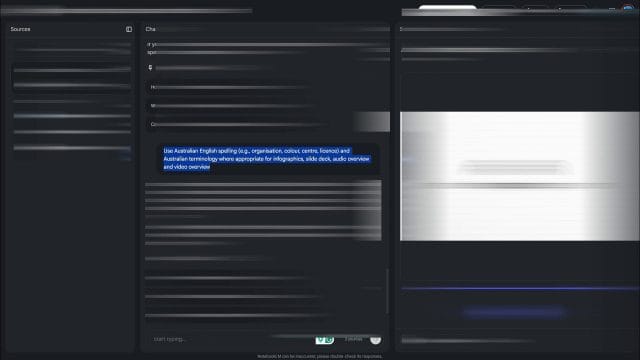
- Use Australian English spelling and style throughout. Examples include organisation, colour, centre, travelled, licence as a noun. Use Australian terminology where appropriate
- Apply this spelling and terminology for all outputs in this notebook. That includes infographics, slide decks, audio overviews and video overviews
If you prefer to make the reminders even more explicit, you can add common pairs. For example, licence for the document you receive from a state authority, license only as a verb. Program in all computing contexts. Cheque for bank payments. Catalogue for product lists. You do not need to overload the instruction. Two lines are usually enough. The presence of clear examples helps the model lock onto the right variant.
A prompt variation that mirrors my test in the video
During my test I used a version that includes concrete examples inside the instruction. This is close to what I wrote.
- Use Australian English spelling. For example, organisation not organization, colour not color, centre not center, licence not license for the noun, travelled not traveled, jewellery not jewelry. Use Australian terminology where appropriate
- Apply these Australian English spellings and terminology for infographics, slide decks, audio overviews and video overviews
This variation does two things. It gives pairs so the system sees both variants and favours the Australian one. It lists the output types, which makes it more likely that the instruction sticks when you switch modes.
Where to put the instruction in NotebookLM
Place your style instruction in the main prompt area before you ask a content question. If your notebook supports system messages or pinned instructions, use that feature so your style is present for every new request. If not, paste the instruction at the top of your first request and let NotebookLM generate your outputs. Once the model has acknowledged the style, you can continue with content specific prompts, and it will usually carry the style through.
Why this step makes a difference for infographics and slide decks
NotebookLM can switch to a different template when it creates an infographic or a slide deck. Templates sometimes include example text fragments, and the model can be tempted to mimic those. By naming the output types in your instruction, you reduce the chance that a template pushes the model back to United States spelling for headings or bullet points. In my testing, once I included the line that calls out infographics, slide decks, audio overviews and video overviews, the spellings inside those assets were correct more often.
Verify the change inside NotebookLM
To confirm that NotebookLM has adopted the style, do a quick round trip with a short source and a few outputs.
- Create or open a notebook with a small source document. It can be a simple page of text with common words like organisation, colour, and licence
- Paste the style instruction at the top of your first request
- Ask for a brief overview that mentions an organisation and its colour palette for a community centre launch. Look for organisation, colour and centre
- Ask NotebookLM to generate an infographic that summarises the key points. Inspect headings and annotations
- Ask for a slide deck outline. Check slide titles and speaker notes
- Request an audio overview and a video overview. Many tools will show a transcript or a script. Scan for the target words
When I ran this sequence, I noticed that the spelling was correct across all of those outputs. In earlier attempts without the style instruction, the first answer would sometimes be correct, but the slide deck or the infographic would slip back into United States spellings. With the instruction in place, that drift reduced substantially.
Accept that AI tools can still mix sources and spellings
Remember, these tools try to combine signals. If your source document is filled with United States spelling, and your prompt requests a quote or a verbatim snippet, NotebookLM should preserve the original. That is the right behaviour. You want quotations and source names to remain exactly as they are. For everything else, your style instruction should hold.
Troubleshooting if you still see United States spelling
If you have updated your Google account language to English Australia and you have added a style instruction inside NotebookLM, but you still see spelling drift, try these practical checks.
- Start a fresh session. Create a new notebook or a new Gemini chat so there is no carry over from previous answers
- Reconfirm that your Google account language is set to English Australia in Personal info
- Check whether you have specified a language inside the individual product settings. Some tools let you override language per app
- Look at your source materials. If they are dominated by content from United States organisations, the model may pick up more of that style. Add a local reference document to balance it
- Strengthen your style instruction. Add a line that says, Use Australian English for all narrative and explanatory text. Keep quotations exactly as written in the source
- If you use Chrome profiles, confirm that you are using the same Google account in both the browser profile and the AI tool
Extra context. How Google services interpret language and region
Language preferences include two elements. The language itself and a region variant. English Australia is the language English with the Australia region. This affects spelling, date order, number separators, and sometimes the way money and measurements are presented. When Google services combine language with your device location, they aim to present content that matches your region. If you travel or switch devices, the service may see a new location and temporarily adjust results. Your account language remains the anchor but it is not the only signal.
This is why a direct instruction in your prompt is so effective. It removes ambiguity and tells the model what you want for the current session and output type.
Examples of clear style instructions for different contexts
If your content is aimed at a specific context, adjust the wording slightly. Here are examples that have worked for me.
- For marketing copy. Use Australian English spelling and tone. Write with concise, friendly language suitable for an Australian audience. Keep spellings like organisation, colour and centre
- For technical writing. Use Australian English spelling and formal tone. Use metric units. Follow day month year for dates
- For education content. Use Australian English spelling. When introducing vocabulary, prefer Australian terms such as footpath and mobile. Include definitions and examples
Why the examples inside the prompt matter
Models are very sensitive to examples. A plain instruction that says Use Australian English is helpful but can be interpreted broadly. When you include a few pairs that show the difference, the model aligns better and stays consistent. There is no need to list every word. Three to six pairs is often enough. It also helps other people who collaborate with you in the notebook. When they see the instruction, they know what to expect and they can keep the style consistent when they prompt.
Keep the instruction visible and consistent across projects
Once you have a style instruction that works, keep it as a snippet you can paste into every new NotebookLM project. If your team shares notebooks, add the instruction to a Read Me note or a project overview so that the style does not disappear when someone else takes over. Consistency is key. When your tools and your team both reinforce Australian spelling, the result is more professional and easier to maintain.
A quick recap of the account language change
Here is a compact version of the steps you can keep handy. It is the same sequence I covered at the start, now grouped as a checklist.
- Go to myaccount dot google dot com and sign in
- Select Personal info
- Open Language under General preferences for the web
- Edit the default language to English Australia
- Save and refresh
- Open Gemini and test a prompt that reveals spelling differences
- Open NotebookLM, add the style instruction, then generate a short set of outputs to confirm
Real world test results with infographics, slide decks, audio, and video overviews
When I added the instruction to use Australian English and listed out organisation, colour, centre and licence, NotebookLM not only followed the spelling in the first text answer, it also carried the style into the infographic and slide deck it generated next. The audio overview used the correct spellings in the transcript preview, and the video overview script matched as well. This is exactly what we want. A consistent style from the first answer through to the most visual assets.
Screens and menus may look different
Google updates its interfaces regularly. The wording might change slightly. The Personal info section might move a little higher or lower on the page. The Language page might include a new option to manage regional variants. If you cannot find an option where I have described it, use the search box at the top of your account page and type Language. That search often jumps you straight to the correct setting.
A short note on mobile and desktop differences
You can change your Google account language from any platform. On mobile devices, the setting lives in the same place when you open myaccount dot google dot com in your browser. If you use the Google app on Android or iOS, there may be in app language options that apply only to the app. Those do not change your overall account language. For consistency across AI tools, use the account setting described earlier rather than app specific options.
Beyond language. Align your tools for an Australian audience
Language is one pillar. If you produce content for Australian readers, consider aligning a few other settings so your entire toolchain agrees. This will not replace the language change, but it supports it.
- In Google Docs, set the document language to English Australia so that spell check and grammar suggestions follow the right rules
- In Chrome settings, ensure English Australia is at the top of your language list
- In Google Search settings, choose a region setting that matches Australia so that examples and snippets skew to local sources
- When you cite prices or dates in prompts, use Australian formats, which further reinforces the model’s output
When to switch language variants temporarily
There are times when you will want United States spelling. For example, if you are writing for an audience that expects it, or you are quoting from or submitting to a publication that requires it. In those cases, a brief instruction at the top of your prompt is enough to switch for that session. When you are done, remove the instruction and your account language will guide you back to Australian English for your next project.
Frequently asked questions I get about this process
People often ask me the same questions after they make the change, so here are the quick answers that have helped.
- Do I need to change the language on every device. No. Your Google account language is tied to your account, not the device. If you sign in on a new computer, your preference comes with you
- Will this change my YouTube recommendations or other app content. Language settings can influence the interface and some content suggestions, but your watch history and location also play a role. You can adjust those separately
- What if a collaborator uses United States spelling in a shared notebook. Add the style instruction to the notebook and agree on a style guide. The model will follow the most recent instruction in the session, so try to keep it consistent
- Can I force Australian spelling in every case. No. The model will preserve quotations and names. It will also use the spelling present in pasted source text when you ask for verbatim outputs. This is good practice
A practical wrap up on the core steps
The heart of this process is simple. Update your Google account language to English Australia. Then, for NotebookLM, include a two line style instruction that names Australian English and lists a few example pairs. For Gemini, run a quick spelling check in your first chat and add a reminder prompt if needed. With these steps in place, you get a consistent tone and spelling across the content you produce, including infographics, slide decks, audio overviews and video overviews.
Visual walkthrough of the Google Account language change
If you prefer a visual cue to confirm you are in the right place, here is a quick walkthrough to accompany the earlier steps. Even if you have already switched your account to English Australia, have a look at these so you recognise the screens when helping a teammate or when you repeat the process on another profile.
From your Google Account home, open Personal info, scroll to General preferences for the web, and select Language. You will see your current primary language at the top. If it is not English Australia, use the edit option to find and select it. The language appears in the list with region in brackets, which is helpful if you are sorting through similar English options.
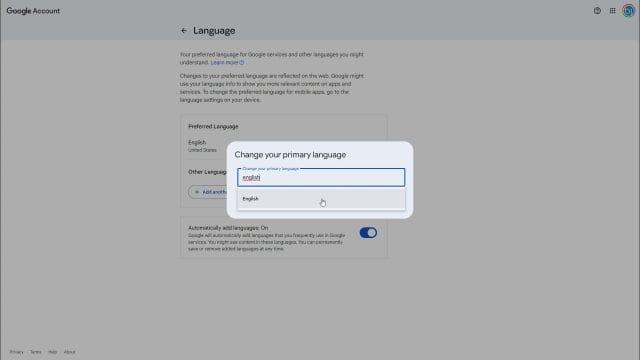
When you click edit, the language picker opens. Type Australia into the search box, then choose English Australia. If you work with multiple markets, add a secondary language for reference so you can quickly switch, but keep English Australia as the primary for this workflow. This preference informs web interfaces, formats, and often how AI tools interpret spelling variants.
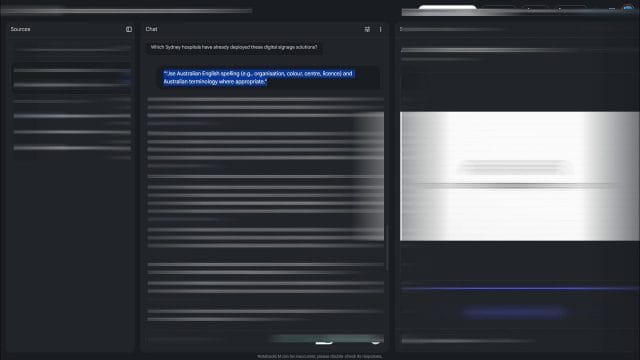
After you save, return to the Language section to confirm the change. It should show English Australia as primary. If the menu still looks unchanged, refresh your browser, open a new tab, or sign out and sign back in. In some cases, the change reflects instantly, in others it needs a moment. If you use multiple Chrome profiles, check that you are editing the language for the profile you actively use with NotebookLM and Gemini.
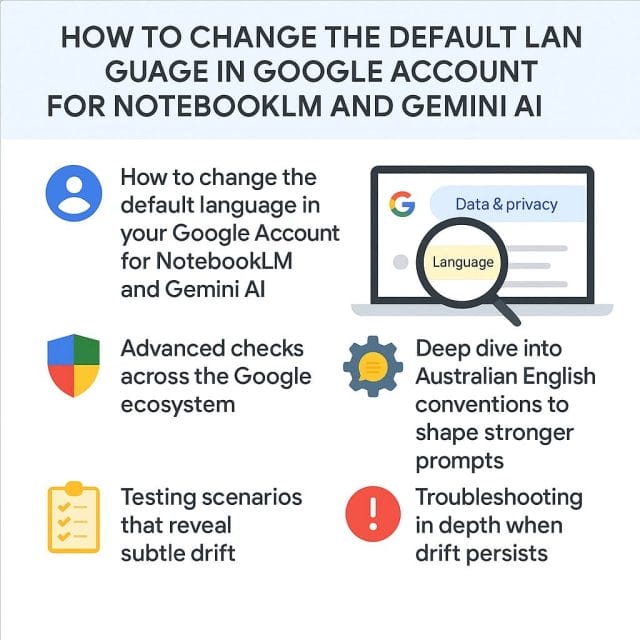
Advanced checks across the Google ecosystem
The account language is the anchor. For consistent Australian English across your everyday tools, reinforce the setting in a few companion places. This matters for content that moves between AI outputs and documents, presentations, and web pages where spellcheck, locale, and templates may introduce variations.
Chrome profile and spellcheck dictionaries
Chrome uses dictionaries for spellcheck and may switch between variants based on your profile setup. Aligning Chrome helps keep your typing, edits, and transcriptions consistent with Australian English.
- Open Chrome settings and search for Languages.
- Under spell check, enable English Australia. If English United Kingdom appears, decide whether you want that as a secondary reference. Australia and United Kingdom share most spellings, but Australia uses program in more contexts and has a few vocabulary preferences.
- Remove English United States if you find Chrome sometimes flips to US spellings during edits.
- Restart Chrome to apply changes cleanly.
Docs, Sheets, and Slides locale
Docs and related apps use a file level locale for formatting dates, numbers, and sometimes influence spellcheck choice. If you use templates that started life in another region, update their settings.
- Open a Google Doc, go to File then Language, and select English Australia.
- For Sheets, open File then Settings, choose Locale Australia to get day first date formats and currency in dollars with local style.
- In Slides, check the text boxes for spellcheck behaviour. If you import themes, run a quick test type with colour, organisation, and licence to see flagged variants. Adjust the file language if needed.
- Save updated templates so new projects start with the correct region settings.
Search and Maps minor preferences
While not central to Gemini or NotebookLM spelling, Search and Maps sometimes influence suggested vocabulary and snippets that appear in your research. In Search settings, set region to Australia. In Maps settings, keep distance units in kilometres. This alignment keeps your context consistent when you move quickly between research and content drafting.
Deep dive into Australian English conventions to shape stronger prompts
A short refresher on conventions makes your instructions more precise. The more concrete your examples and expectations, the better the output adherence, especially in mixed mode projects where visual templates and audio narration can drift.
Spelling patterns and examples you can paste into instructions
- Use colour, organisation, centre, licence noun, jewellery, catalogue, travelled, counsellor, ageing.
- Use programme only in certain formal or historical contexts. For general and computing contexts in Australia use program. If you must include programme, specify the scope in your prompt.
- Preferred vocabulary includes footpath, mobile, ute, eftpos, maths, bush track, petrol station, regional town, servo slang often avoided in formal copy.
- Date format uses day month year. For example, 12 October 2026 or 12 Oct 2026 in brevity. Avoid month day year except when quoting sources that use that layout.
- Quotation marks vary by style guide. Choose single or double and keep it consistent. For team work, write the choice into your prompt. For example, Use single quotation marks for quoted speech and double for quotes within quotes.
- Use metric units in narrative and visual outputs, metres, kilometres, kilograms. If a source uses imperial, add a conversion note, for example, include conversions in brackets.
Examples of compact instructions you can reuse
These fit well in NotebookLM pinned instructions and as a starter line in Gemini sessions. Tailor tone and audience for your sector.
- Use Australian English in spelling and terminology across text, visuals, and audio. Spell colour, organisation, licence noun, jewellery. Use program for general and computing contexts. Use day month year dates and metric units.
- Marketing tone note. Write with clear, friendly Australian English suitable for small business customers. Use colour, organisation. Avoid slang unless requested. Use metric units and day month year dates.
- Education tone note. Use classroom friendly Australian English. Keep quotations verbatim from sources. Convert imperial units to metric and include both for clarity.
Testing scenarios that reveal subtle drift
When you want absolute consistency, design prompts that expose differences. The aim is not to trick the model, it is to make feedback obvious so you can adjust quickly.
Text tests for spelling and vocabulary
- Write a short paragraph that uses colour, organisation, centre, licence noun, jewellery, and travelled. Ask for two versions of the paragraph and compare spelling across both.
- Request a summary of a topic and include words where US variants often appear. For example, analyse the colour scheme of the organisation brand centre. The presence of colour and organisation makes drift obvious.
- Ask for bullet points that include footpath, mobile, maths. US outputs tend to switch to sidewalk, cell phone, math, which you can catch quickly.
Visual mode tests for infographics and slide decks
- Ask for an infographic with section headings that include Colour palette, Organisation values, Centre of service coverage. Scan headings first, then call outs.
- Request a slide deck with titles and speaker notes. Titles sometimes drift even when notes are correct because they use template text. Reinforce spelling in the pinned instruction and scan titles.
Audio and video overview tests
- Ask for an audio summary and request a transcript in Australian English. Check colour and organisation references in the transcript.
- For video outlines, ask for on screen text lines with colour and centre. Check text lines and narration suggestions.
Troubleshooting in depth when drift persists
Occasionally you will see a stubborn pattern, often caused by heavy US source dominance, a template with embedded US spellings, or a session where an early instruction took precedence. Here is a structured recovery path.
- Start a fresh Gemini chat and begin with the style instruction. If the previous session carried momentum from a different request, a new chat resets context.
- In NotebookLM, duplicate the project and paste the style instruction at the top, then add sources. Projects sometimes inherit subtle context from earlier drafts.
- Balance sources by including at least one Australian style document or a short style guide relevant to your industry. Models take hints from sources even when asked to summarise neutral content.
- Reduce US template influence. If an output deck keeps US spellings in headings, ask for plain text version of the deck outline first, then build slides manually in a tool with Australian spellcheck. Alternatively, request a deck with no pre loaded templates and specify headings verbatim.
- Emphasise narrative versus quotation. Add a reminder, Narrative uses Australian English. Keep sources and direct quotes verbatim. This helps the model separate your style from quoted material.
- Reconfirm account language for the active profile. If you switch between business and personal profiles, it is easy to edit the wrong one by accident.
Team and collaboration guidance for Google Workspace
If you work in a team or manage content for clients, organisation wide settings reduce friction. The aim is to set a consistent default that guides day to day writing and presentation work, while allowing flexibility when a project requires US or other regional spellings.
Admin console notes for workspace owners
- In the Admin console, set default language to English Australia for the organisation or sub organisation that produces content for Australian audiences. This influences interfaces and defaults across core apps.
- Share a short style note that specifies Australian English expectations and includes examples. Encourage the team to paste the note into NotebookLM pinned instructions and Gemini first prompts.
- Provide templates for Docs, Sheets, and Slides with Australia locale. Distribute through shared drives so new files start in the correct format.
- Keep a reference card that explains when to switch to US spelling. For example, a campaign targeted at a US audience must use US spellings and local vocabulary. A simple checklist helps avoid confusion.
Client and partner collaboration
- When you invite external collaborators, mention your language choice in the project brief. Add a line to keep narrative in Australian English and quotes verbatim.
- Share your style instruction at the start of a shared NotebookLM project. Pin it so it is visible.
- If a partner edits in US spellings, run a final sweep with Docs spellcheck set to English Australia to correct drift before publication.
Mobile and tablet workflow tips
You can change the Google Account language using a mobile browser. The mobile interface is streamlined, but the path is the same. Open your account page, navigate to Personal info, then General preferences for the web, then Language. If the mobile view hides certain sub menus, switch to desktop site in your browser menu and proceed.
- Use a modern mobile browser that supports account settings well.
- If changes do not appear in Gemini mobile quickly, close the app and reopen. Mobile sessions sometimes cache interface language for performance.
- NotebookLM works best on desktop for project setup. Edit your style instruction there and test on mobile after initial verification.
Edge cases and limits worth noting
There are situations where the model should not alter spelling, and protecting those is part of a good style approach.
- Keep names, product names, company legal names, and registered taglines in their original spelling. Use quotes or italics for clarity if needed.
- Leave quoted material as it appears in the source. You can include a bracketed note after the quote if you want to clarify a spelling difference for readers.
- Code, commands, and technical identifiers must remain unchanged. If you embed shell commands or package names, do not let spellcheck interfere.
- When translating or summarising a US heavy document, add a note to maintain vocabulary in quoted passages and headings when those headings are part of the quoted structure.
Practical case study from setup to publication
To demonstrate the end to end process, here is a realistic scenario that combines research, writing, and a simple visual output. This mirrors a common small business workflow and reflects the style of content we often produce on this site.
Scenario
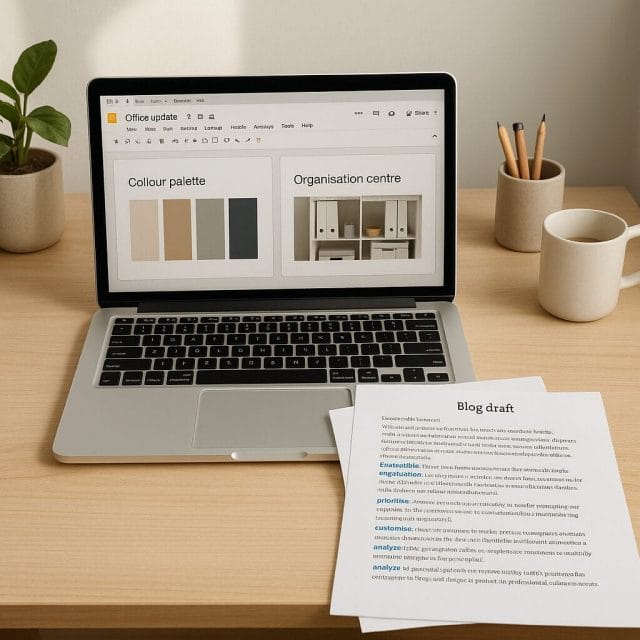
You need a short blog post about a new office space with a slide deck overview for a team meeting. You want consistent Australian English across text and slides.
Steps
- Confirm your Google Account language is English Australia.
- Open Gemini and start a fresh chat. Paste the style instruction that sets Australian English, includes spelling examples, date format, and metric units.
- Provide a brief outline of the post and ask for a draft that uses colour, organisation, centre, licence noun, and travelled somewhere relevant. This helps you see adherence quickly.
- Review the draft. If you see color or organization, add a response reminder and request a corrected version.
- Open NotebookLM and create a project. Pin the same style instruction at the top. Add a short source that describes the office move.
- Ask NotebookLM for an overview, a slide deck outline with five slides, and a simple infographic concept for the office layout and colour palette. Scan all outputs for spelling and date formats.
- Import the slide outline into Slides. Set file language to English Australia if it is not already. Create slides manually or ask NotebookLM to generate speaker notes you can paste.
- Publish the blog post in your site editor. Run a final spellcheck for English Australia. Confirm dates appear as day month year and units are metric. If you mention travel, ensure travelled appears correctly.
The results should show consistent Australian English across text and visuals. If any drift appears, it will likely be in slide headings copied from a template. Replace those headings with your verified text and you are done.
Refining prompt craft for better control
Prompts are not only requests. They are mini style guides that speak to the model in plain language. Here are techniques that increase compliance and reduce friction.
- State the language at the top. Use Australian English for all narrative text, headings, labels, and on screen text. Keep quotes verbatim.
- Include two or three spelling examples as anchors. Use colour not color, organisation not organization, licence noun not license noun.
- Explicitly call out formats. Use day month year dates, metric units, and Australian currency and number formatting.
- Name the output modes you expect. This includes text, infographic labels, slide titles, audio narration, and video captions.
- Ask for a short compliance check at the end. Add a line, confirm use of Australian English in a one sentence note.
- When switching temporarily, add a clear instruction that overrides the default and explain why. For example, for US campaign materials use US English. Switch back after the task.
Real world examples of Gemini and NotebookLM behaviour
Based on repeated use across many tasks, here is what you can generally expect when your account language is set to English Australia and your prompts carry a clear instruction.
- Gemini follows the instruction within a session with high accuracy. If you paste the style line first, outputs almost always use the expected spelling. If drift happens, a reminder corrects it.
- NotebookLM respects the pinned instruction well in text outputs. Visual outputs such as decks and infographics need a quick scan for headings, but the narrative and labels are usually correct when the instruction is explicit.
- Audio and video outlines tend to be accurate as long as you name the mode in your instruction. Adding the words audio and video in the style line helps ensure the spellings carry into those modes.
- Heavily US sources can still influence vocabulary. Balancing sources or adding a vocabulary reminder reduces that effect.
Frequently asked questions and practical answers
Will changing my account language affect suggestions in Search and Ads
It can lightly influence interface language and sometimes the wording in automated suggestions, but it does not override campaign targeting or core algorithms. For marketing tools, language settings and geo targeting live in separate controls.
Can I set Australian English on one device and US English on another
Your Google Account language is tied to the profile, not the device. If you want different defaults on different devices, use separate profiles. For temporary needs, switch with a prompt instruction rather than changing the account setting repeatedly.
Why do quotes appear with US spellings in my summary
NotebookLM and Gemini keep quotes verbatim. That is the correct behaviour. If you want to offer a local spelling in commentary, add a bracketed note after the quote. Never alter legal or compliance sensitive text.
Does English United Kingdom work as a substitute for English Australia
It is close and fine for many tasks. Australia prefers program across most contexts. Vocabulary differences exist in everyday terms. If your audience is Australian, English Australia is the most precise choice.
What if a teammate on a shared project prefers US spellings
Set a project style rule at the start. Use the pinned instruction in NotebookLM and keep a short style line in Gemini. Agree on when to switch for US audiences. Run a final pass in Docs or your editor to correct drift before publication.
How do I handle mixed market content in one document
Split into sections and state the language choice for each section in your prompt. For example, Marketing overview uses Australian English. US market notes use US English. This keeps editorial intent clear.
Does device location change how Gemini spells words
Device location can influence context, but the account language and your prompt instruction carry more weight. If you notice drift on a trip, add a reminder line at the start of your session and continue.
A simple checklist to keep on your desk
- Google Account language set to English Australia.
- Chrome spellcheck uses English Australia.
- Docs, Sheets, Slides templates set to Australia locale and language.
- Gemini session starts with Australian English instruction.
- NotebookLM project pins the instruction and balances sources.
- Visual outputs checked for headings and labels.
- Quotes and names left as is.
- Metric units and day month year dates in narrative.
Working habits that build long term consistency
The most reliable results come from small, repeatable habits rather than one off fixes. Here are habits that help.
- Save a reusable style instruction in a notes app and paste it at the start of new sessions.
- Keep a short list of spelling pairs at hand. Colour, organisation, centre, licence noun, jewellery, catalogue, travelled.
- Create and maintain local templates for Docs and Slides so new projects start correctly.
- Review visual outputs quickly. Headings and labels are the most common drift points.
- When collaborating, state the language choice early and confirm at review.
Case notes from everyday testing
Across repeated runs, here are interesting observations that may help you when something looks off.
- Gemini sometimes mirrors your last spelling if you type a word in US form in your request. If you want strict output, keep your prompt in Australian English too.
- NotebookLM can retain an earlier instruction from a draft even after you update. Duplicate the project and paste the new instruction to be safe.
- Visual templates from external sources may carry US spellings in layer names. They are invisible in the final output but sometimes leak into headings. Build a clean local template once and reuse it.
- Audio transcript spellings are very accurate when the style line mentions audio explicitly. This small addition helps a lot.
Examples of short prompts for quick tests
- Please write a three paragraph overview of our new office fit out in Australian English. Use colour, organisation, centre in context. Dates should be day month year and units are metric.
- Create a five slide outline for a team update in Australian English. Slide titles and notes must use colour, organisation, centre. Include a slide with a date formatted as day month year.
- Build a short infographic concept with labels in Australian English. Include Colour palette, Organisation values, Centre map.
- Record a one minute audio summary and return the transcript in Australian English. Include a reference to a licence renewal in the second sentence.
Final thoughts and encouragement
Aligning the Google Account language with a clear style instruction gives you the leverage you need for consistent Australian English across Gemini and NotebookLM. It is simple, repeatable, and it keeps your content on brand for local audiences. Your prompts set expectations, your account language signals intent, and your verification steps give you confidence before you publish.
Whether you are scripting a video, building an infographic, or drafting a report, these steps will save you time and reduce editorial stress. If you build a small library of style notes and templates now, future projects will move faster and you will spend less time correcting spelling drift.
If you test this setup and find a quirk, share the scenario and the fix with your team or in your notes. A few minutes of documentation prevents repeated mistakes and helps others who work across markets. The approach is practical and rooted in everyday use, which is exactly how we like to operate.
Happy writing and creating, and may your colour, organisation, and centre appear just as they should from first draft to final publication.

If this article helped you in any way and you want to show your appreciation, I am more than happy to receive donations through PayPal. This will help me maintain and improve this website so I can help more people out there. Thank you for your help.
HELP OTHERS AND SHARE THIS ARTICLE
LEAVE A COMMENT

I am an entrepreneur based in Sydney Australia. I was born in Vietnam, grew up in Italy and currently residing in Australia. I started my first business venture Advertise Me from a random idea and have never looked back since. My passion is in the digital space, affiliate marketing, fitness and I launched several digital products. You will find these on the portfolio page.
I’ve decided to change from a Vegetarian to a Vegan diet and started a website called Veggie Meals.
I started this blog so I could leave a digital footprint of my random thoughts, ideas and life in general.
If any of the articles helped you in any way, please donate. Thank you for your help.
Affiliate Compensated: there are some articles with links to products or services that I may receive a commission.