

We bought the Nintendo Switch Ring Fit for the Kids and I stumbled across an issue with the unit display. This post is to show you how to change unit display in ring fit adventure on the Nintendo Switch.
Basically changing from the unit display from miles to kilometers or stone/pounds to kilograms. Or vice versa, kilometers to miles or kilograms to stone/pounts.
When you initially start the game, you may be asked whether you want to use Outside the UK or UK.
UK = Imperial: distance in miles, weight in stone/pounds
Outside the UK = Metric: distance in kilometers, weight in kilograms
My kids accidentally chose the wrong one as they didn’t know what they were doing and chose UK. When they played the game the distance was in miles and the weight in stones and they didn’t know what that meant.
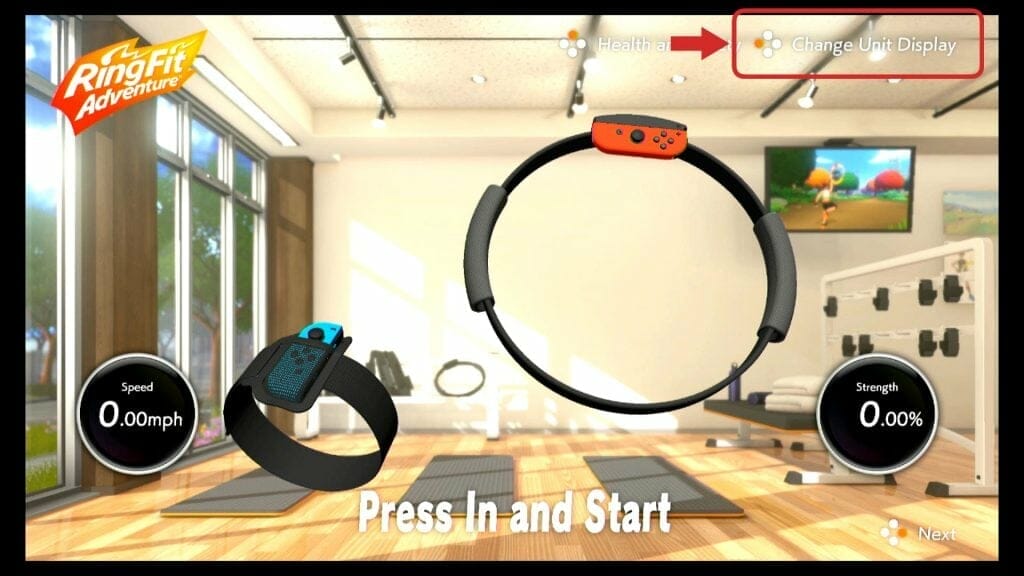
After some research I found the option to change it and it’s pretty simple. You basically start the game and on this screen you press the left button.
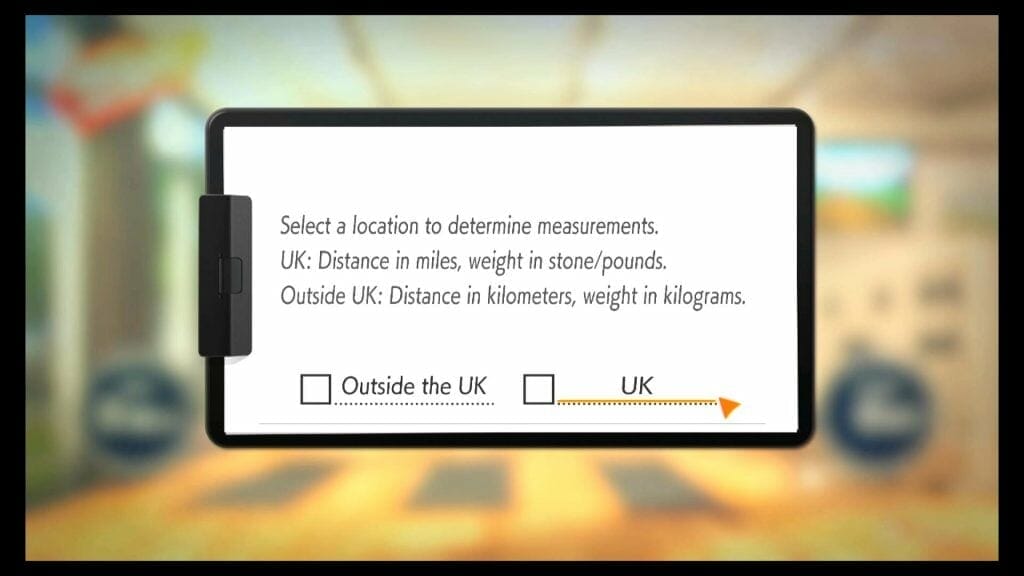
You will be prompted with, Select a location to determine measurements.
Select the relevant location and that’s it.
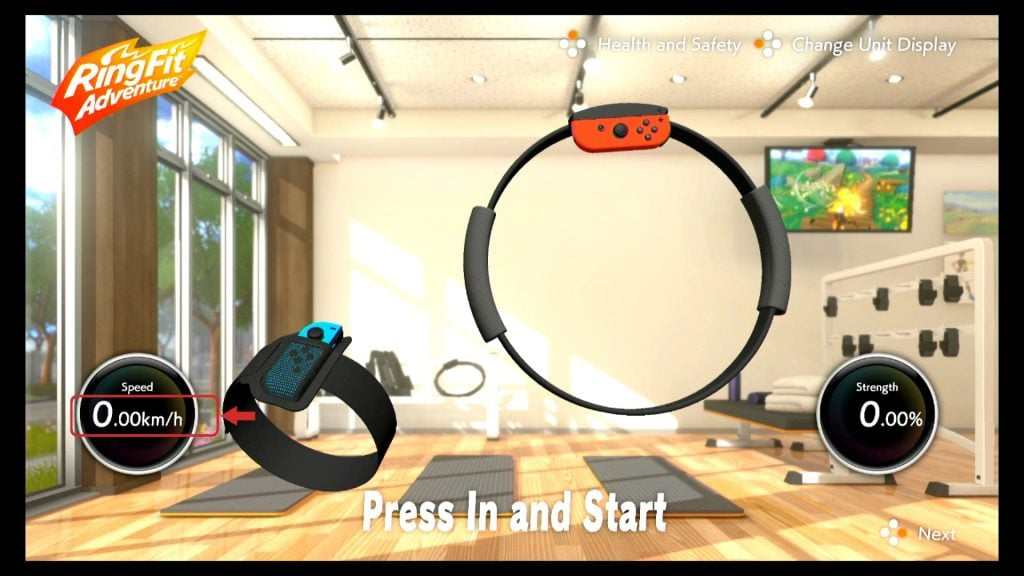
You will see the units change at the bottom left hand corner.
Have a look at this video if you need further help:


![Generated thumbnail for Plan a Vaucluse Coastal Day Out [5 Easy Stops]](https://cdn.marcotran.com.au/wp-content/uploads/tse-generated-thumbnails/2026/09/tse-thumbnail-8c1-final-20260703-18617-plan-a-vaucluse-coastal-day-out-5-easy-stops-720x480.jpg?strip=all)

