If you’re using Discord and don’t want to display your game activity status for privacy reasons, then you may want to read and follow the instructions in this post. Discord is a communication tool that is mainly used for gamers but I’ve been using it for university. I’ve just finished completing my undergraduate degree in Applied Technology, and discord is used to share ideas and course information with lectures and other students.
By default, the game activity status is enabled so if you were playing a game such as Mindcraft, Fortnite, or Need for Speed then all the students and lecturers will see that on Discord. Some apps may also display what video you’re watching so be careful.
To disable the game activity status on discord follows these simple steps:
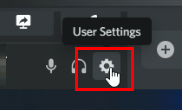
Click on User Settings
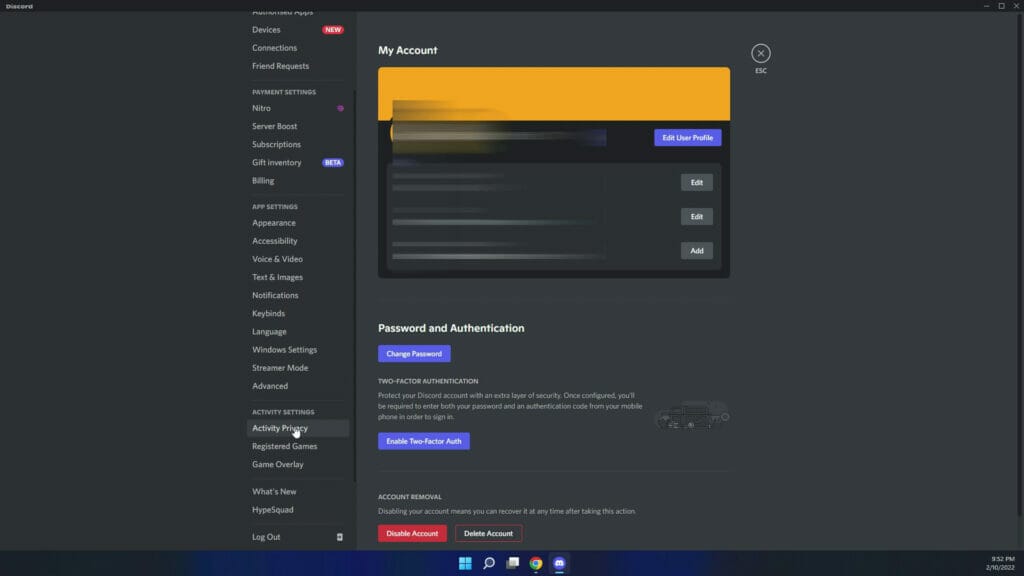
Scroll down to Activity Privacy
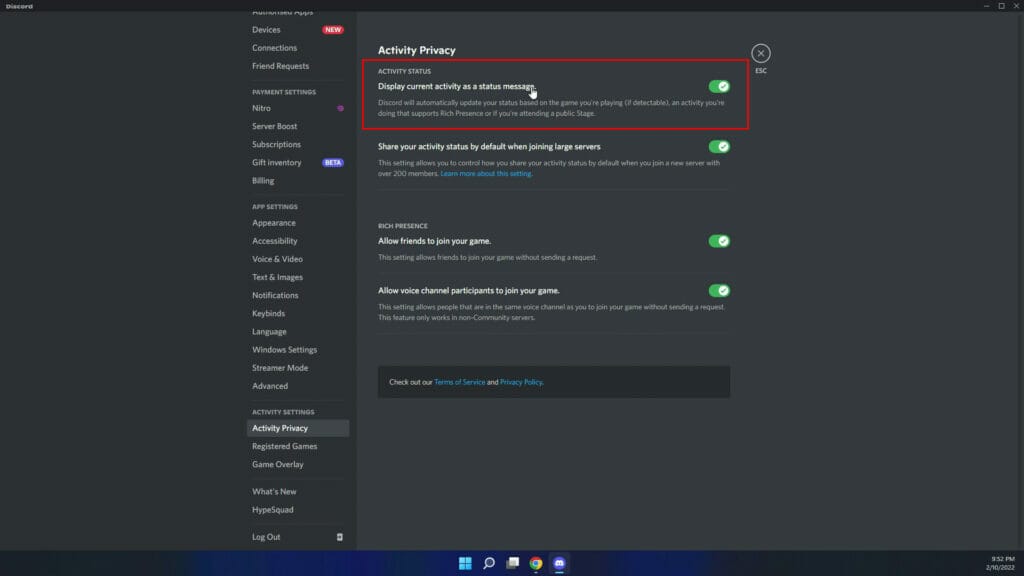
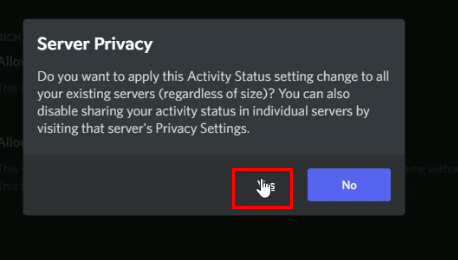
Deselect Display current activity as a status message
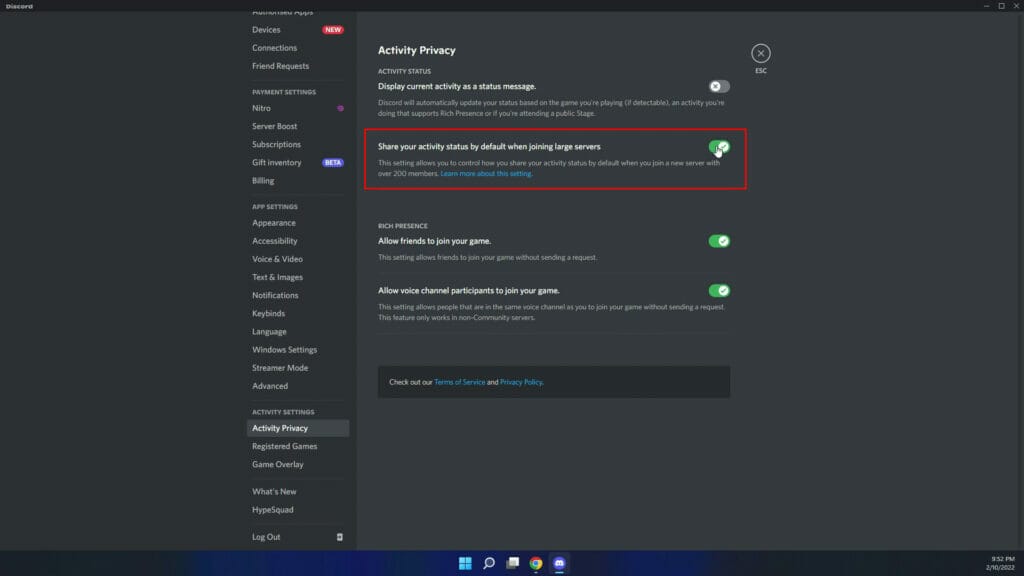
Deselect Share your activity status by default when joining large servers
That’s it. It’s such a simple process and you’ll now be able to enjoy playing and watching without other people knowing what you’re doing. Here’s a video showing you HOW TO DISABLE OR HIDE THE GAME ACTIVITY STATUS ON DISCORD