Sometimes the most useful phone features are the ones you discover by accident. That is exactly how this Android Pixel torch strength setting feels. On the surface, the torch on a phone seems simple. You turn it on when you need a bit of light, then turn it off when you are done. But on newer Android Pixel software, there is more control available than many people realise. You can actually adjust how bright the torch is, which makes it much more practical in day to day use.
If you use your Pixel as a quick light source around the house, in the car, while camping, or when checking something in a dark cupboard, being able to change the torch brightness is genuinely handy. Full brightness is useful when you need maximum visibility, but sometimes it is overkill. A softer torch setting can be more comfortable on the eyes, less disruptive in a dark room, and potentially a bit more battery friendly for short tasks. It is one of those small quality of life features that makes the phone feel more refined.
This guide walks through what the torch strength feature is, how to use it on an Android Pixel, and what to keep in mind if you do not see it on your device. The screenshots from the original walkthrough are included below to show exactly what the interface looks like on the device used, which was running Android 16.
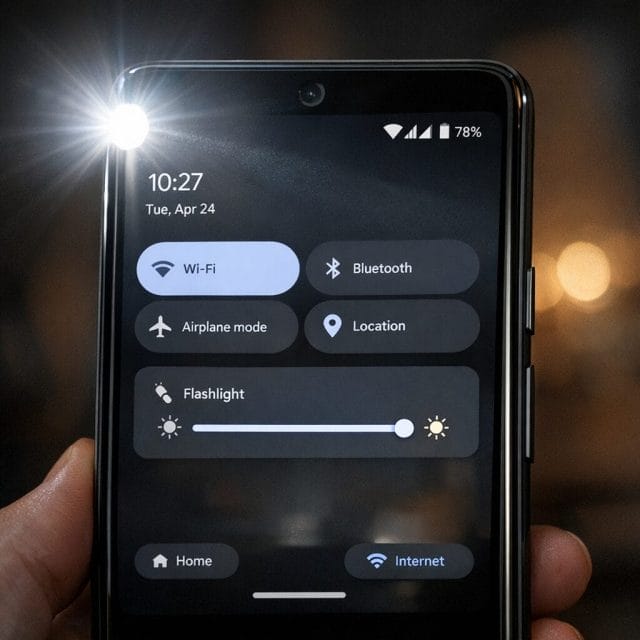
A small feature that is more useful than it sounds
There are plenty of Android features that sound minor until you actually start using them. Torch strength is one of those. Most people are used to the standard quick settings torch tile, where tapping it simply turns the light on or off. That has been enough for years, so many users would never think to look for anything more advanced. But once brightness control is available, it quickly makes sense.
Think about the different situations where you use your phone torch. If you drop something under the couch, high brightness is helpful. If you are checking on a child without wanting to flood the room with light, a lower setting is better. If you are using the torch in a tent, inside a car, or while looking for something at night, having the option to reduce the intensity can make the experience much more comfortable. It gives you more control over a feature that many people rely on regularly.
For a website that often covers practical tech features, quick fixes, and simple productivity wins, this is exactly the kind of Android tip worth knowing. It is not flashy, but it is useful. And those are often the best features.
How the torch strength feature works on a Pixel
On supported Pixel devices and software versions, the torch is no longer just a binary setting. Instead of only being on or off, you can access a control that lets you adjust the light level. In the quick demonstration from the transcript, the torch can be changed dynamically so it becomes brighter or less bright depending on what is needed.
The key point is that this is built into the phone experience rather than requiring a separate torch app. That matters because many third party flashlight apps come with unnecessary permissions, ads, or clutter. If your Pixel already supports torch strength natively, it is a much cleaner and safer way to get the same functionality.
In practice, the feature feels simple. You activate the torch and then use the brightness control to shift the strength up or down. That means you are not stuck with maximum output every time you turn it on. For anyone who uses their phone as a torch regularly, that is a noticeable improvement.
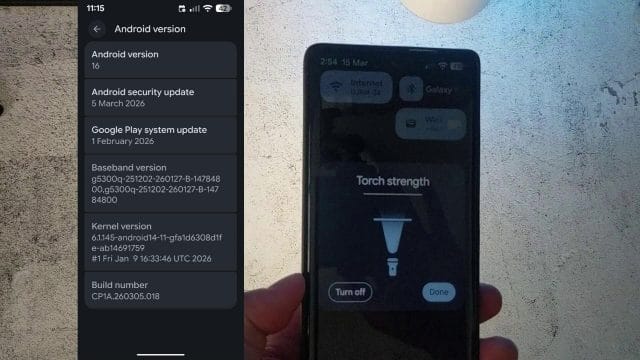
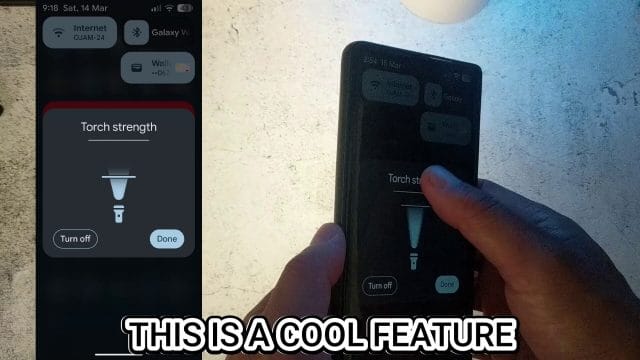
The screenshot above captures the feature in action. This is the main thing to look for if you are checking whether your Pixel has the option available. Instead of a plain torch toggle with no extra controls, you should be able to access a brightness adjustment interface.
How to access the torch strength control
If you want to try this on your own device, start by swiping down from the top of the screen to open Quick Settings on your Pixel. Depending on your layout and software version, you may need to swipe down once more to expand the full panel. Look for the torch tile, which may also be labelled flashlight on some devices or interfaces, although Pixel commonly uses the torch wording in general discussion.
Once you find the torch control, the important part is not just tapping it quickly and moving on. On many Android controls, pressing and holding or interacting slightly differently can reveal additional options. If your Pixel supports torch strength, you should be able to bring up the brightness adjustment rather than only switching the torch on and off. The exact gesture can vary slightly depending on software refinements, but the goal is to access the expanded control.
From there, you can move the control to make the torch brighter or dimmer. That is the core of the feature. It is not hidden inside deep settings menus and it does not require any complicated setup. Once you know it exists, it is easy to use.
In the original transcript, the feature is shown very simply, with the torch becoming brighter and less bright as the control is adjusted. That straightforward behaviour is part of what makes the feature appealing. It is practical immediately and does not need much explanation once you see it working.
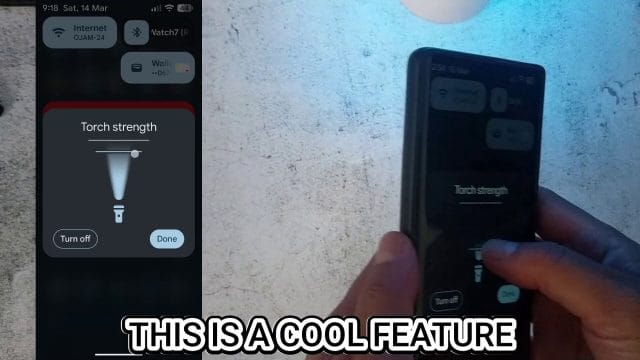
This second screenshot shows the torch strength control changing in use. If you are trying to replicate the same behaviour on your own phone, this is the visual result you want to look for.
Why adjustable torch brightness is actually practical
There is a tendency to dismiss small phone features as novelty additions, but adjustable torch brightness earns its place. The most obvious benefit is comfort. Maximum torch brightness in a completely dark environment can feel harsh, especially when the light reflects off white walls, glossy surfaces, mirrors, or the inside of a cupboard. A lower light level can still give you enough visibility without feeling blinding.
It is also useful for courtesy. If you are in a shared room, checking on someone sleeping, or trying not to attract attention in a dark environment, lower brightness is the better option. Full power light can be disruptive, while a reduced setting feels more controlled and deliberate. That makes the phone torch more versatile than the standard all or nothing approach.
There is also a practical battery angle, even if it may not be dramatic for short use. The torch is one of the more power intensive simple hardware functions on a phone because it uses the camera flash LED continuously. If you only need a little light for a short task, using a lower strength setting may be a smarter choice than blasting it at maximum every time. It is not about huge battery savings, but it does make sense as part of efficient everyday use.
Another point is heat and long use comfort. If someone uses the torch for extended periods, such as while walking through a dark area, searching a boot, or setting up gear at night, having more control can help tailor the experience. Brightness that matches the task is simply better than one fixed setting.
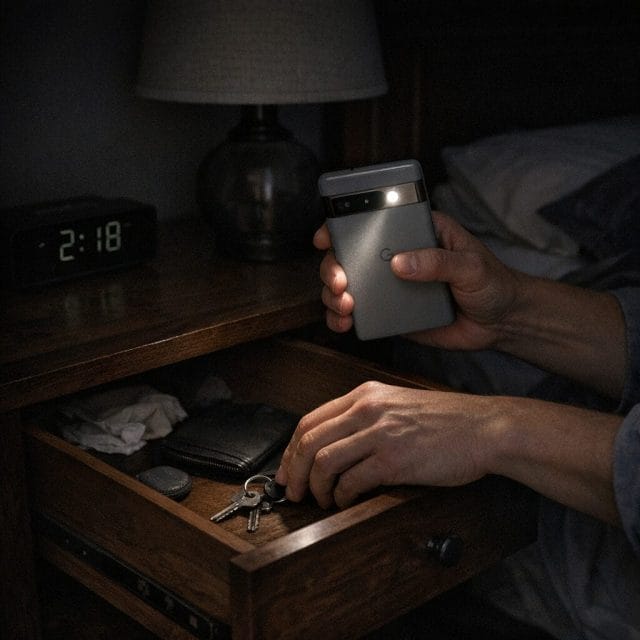
What if you do not see the feature on your Pixel
If you have tried to find torch strength and it is not appearing, there are a few likely reasons. The first is software version. In the transcript, the device used for this feature was running Android 16, which strongly suggests that software support plays a major role. Not every Pixel on older Android versions will necessarily show the same controls.
That means the first thing to check is whether your phone is up to date. Go into your settings, look for system updates, and make sure you are running the latest version available for your device. Google often rolls out features through Android updates, Pixel Feature Drops, security updates, and app level changes. Sometimes a feature that is available on one device does not appear immediately on another until the right update lands.
The second possibility is device specific support. While Pixel phones generally share a clean and consistent software experience, not every feature always appears on every model at the same time. Hardware differences can matter, and Google occasionally phases in features across specific devices first. If you have an older Pixel, there is a chance the option may not be available yet or may never be added in exactly the same way.
Another thing worth checking is whether the Quick Settings panel has been customised in a way that hides or changes the behaviour of the torch tile. If needed, edit the Quick Settings layout and re add the torch tile to make sure you are using the default control. It is a simple step, but sometimes worth trying if something does not behave as expected.
Android version details shown in the original walkthrough
The original walkthrough does not just show the feature itself. It also shows the Android version information used on the device, which is important because it gives context for anyone trying to match the same setup. According to the transcript, the phone was running Android 16, and the author also showed the security update level and build number.
This screenshot shows the Android version information screen. If you are comparing your own Pixel to the one in the walkthrough, this is a useful reference point. Software version differences are often the reason one user sees a feature while another does not.
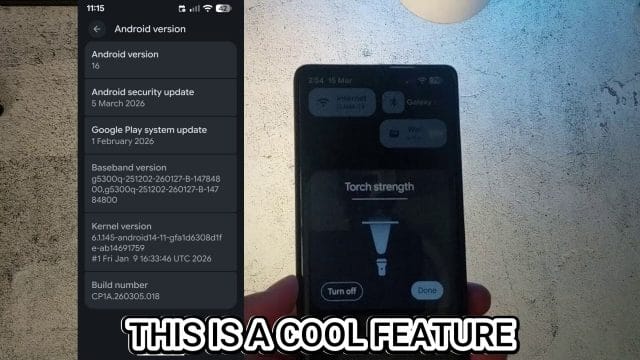
This screenshot continues that version and build detail. For troubleshooting and comparison, this matters more than many people realise. Android features are not always tied just to the phone model. They can also depend on the exact build running on the device.
If you are writing down device details for support forums, comparing with another Pixel owner, or trying to confirm whether an update changed your torch options, the build number and security patch level can be very useful. It is a practical habit whenever you notice a software feature appearing or changing.
Tips for getting the most out of the Pixel torch
Once you know torch strength is available, it is worth treating the torch as more than an emergency only feature. In normal day to day life, a lower setting may actually become your default. For example, if you are checking cables behind a desk, looking under a car seat, or unlocking a gate at night, maximum brightness may not be necessary. A softer setting often gives enough light with less glare.
It is also helpful to remember that the torch works best when paired with the right grip and angle. Because the LED is positioned near the camera module, the direction of the beam depends on how you hold the phone. At full brightness, reflections from nearby shiny objects can be quite strong. Reducing the torch strength can make close range tasks easier because you get less blowout from reflective surfaces.
For content creators, tinkerers, and anyone who frequently tests gadgets or records small demonstrations, this feature can be useful beyond general lighting. A dimmer torch can work as a very basic fill light in a pinch, especially for close up shots where full brightness would be too harsh. It is not a replacement for proper lighting gear, but it can be a surprisingly handy option when you need something quick.
This aligns nicely with the kind of practical experimentation often covered on The Simple Entrepreneur. Not every tech feature needs to be revolutionary. Sometimes the win is just having better control over tools you already use.
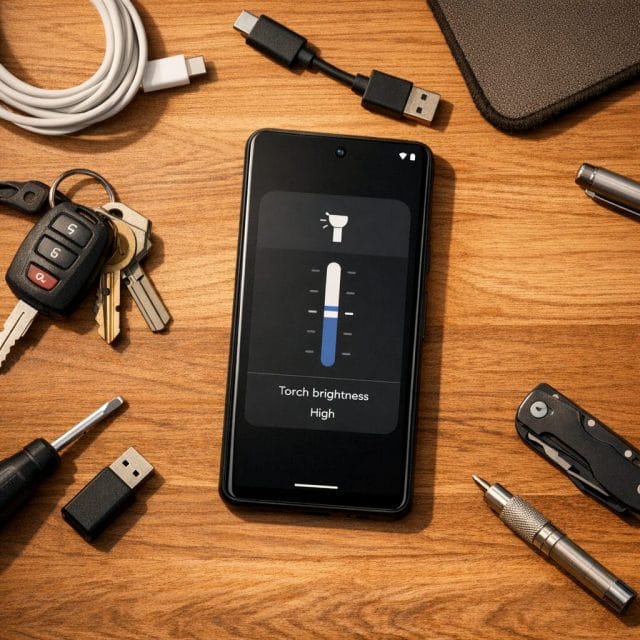
Why built in features like this matter
One reason this torch strength feature stands out is that it reduces the need for extra apps. A lot of phone users still search the app store whenever they want more functionality, but built in Android and Pixel features are often the better route. They are usually faster, cleaner, and more integrated with the operating system. They also avoid the privacy and performance concerns that can come with third party utilities.
This is especially relevant for simple hardware related tools like torches, battery monitors, scanners, and system controls. If the operating system already gives you what you need, there is little reason to add more software. In many cases, the best improvements to your phone are the ones already waiting there in the interface.
That is why these small feature discoveries are worth sharing. They save time, simplify day to day use, and help people get more value out of a device they already own. A Pixel phone is full of subtle quality of life features, but they are only useful if you know they exist.
If you want to check your own Pixel right now
If you are reading this on your Pixel, the easiest thing to do is test it immediately. Open Quick Settings, find the torch tile, and see whether you can access a brightness adjustment. If you can, try moving between lower and higher levels so you get a feel for which setting works best for different situations. It only takes a few seconds, and once you know where the control is, you will probably use it more often than expected.
If the option is not there, check your Android version and system updates first. Since the original demonstration was on Android 16, that is the closest reference point for matching the same feature. If your device is behind on updates, that is the first place to start. If your Pixel is already current and the feature still does not appear, it may be limited by device support or a staged software rollout.
Either way, this is a great example of how useful hidden or overlooked Android features can be. The torch is one of the simplest tools on a phone, but adding adjustable strength makes it significantly more flexible. It is the kind of small upgrade that quietly improves everyday life, and those are often the most satisfying discoveries on any device.

If this article helped you in any way and you want to show your appreciation, I am more than happy to receive donations through PayPal. This will help me maintain and improve this website so I can help more people out there. Thank you for your help.
HELP OTHERS AND SHARE THIS ARTICLE
LEAVE A COMMENT

I am an entrepreneur based in Sydney Australia. I was born in Vietnam, grew up in Italy and currently residing in Australia. I started my first business venture Advertise Me from a random idea and have never looked back since. My passion is in the digital space, affiliate marketing, fitness and I launched several digital products. You will find these on the portfolio page.
I’ve decided to change from a Vegetarian to a Vegan diet and started a website called Veggie Meals.
I started this blog so I could leave a digital footprint of my random thoughts, ideas and life in general.
If any of the articles helped you in any way, please donate. Thank you for your help.
Affiliate Compensated: there are some articles with links to products or services that I may receive a commission.