One of my VPS (Virtual Private Servers) reached 100% in disk space and I was about to pay more money to increase the disk space but found the cause. So read this article in case you are in the same situation.
Initially, on the VPS I used the below command to find the largest files on the web folder and started cleaning up files that were not used.
find /web/ -printf '%s %p\n'| sort -nr | head -100I only managed to recover about 2-3 MB of space so I thought I’d better backup the server before paying for the additional disk space. Whilst I was doing the rsync backup, I noticed a long series of files located in a specific folder. If you don’t know what rsync does or if you need to set it up check out this article: SETTING UP RSYNC FOR FILE SYNCHRONISATION
The folder name that kept appearing was:
[website name]/public_html/wp-content/cache/tmpWpfc/After further inspection, this folder is used by WP Fastest Cache (one of the caching plugins that I use – I listed some in this article WORDPRESS CACHING PLUGINS ). It turns out that this temporary folder was getting filled up with files generated by the plugin and it wasn’t being removed – it was like in a stuck stage. When I issued the command to remove these folders I was very surprised at how much space it was using.
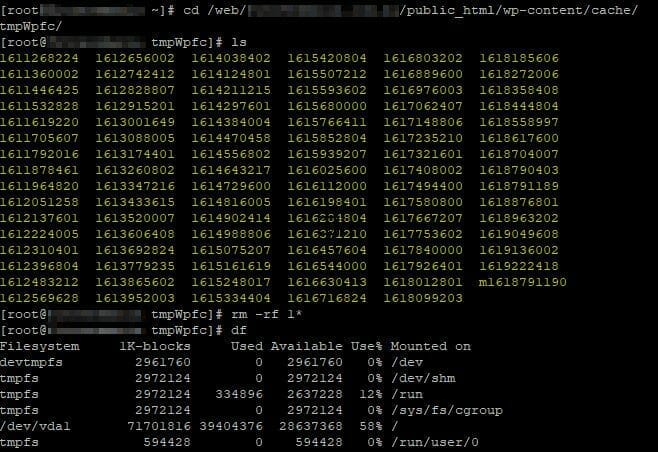
As you can see from the above screenshot, I managed to recover about 42% (approximately 28GB) of disk space just from cleaning the tmpWpfc folder. That was a lot of wasted disk space and I was glad I managed to recover this space. If you’re running WP Fastest Cache inspect this folder to see if there are any temp files and then delete them.
After deleting all these unnecessary files, I permanently fixed the issue by making sure you have the latest version of WordPress and WP Fastest Cache.
I hope this helps some of you out there and if you’re looking for affordable online hosting check out Online Hosting Solutions.