The ANCEL BD310 is a compact and capable OBD2 scanner that makes checking a car for faults simple. It can be used on its own without a phone, and it can also pair with a mobile app through Bluetooth. With it you can read the OBD status, find out whether there are any stored errors, clear those errors when appropriate, and observe useful live data such as engine speed in revolutions per minute. This guide walks through how to use it in a practical way, why each step matters, and how to get the most out of the device when you are investigating a dashboard warning light or a strange engine behaviour.
Before we get into steps and menus, it helps to understand what an OBD2 scanner actually does. OBD stands for on board diagnostics. Since the late nineties, most cars sold in Europe have had a standard port that allows a small computer to query the engine control unit and related modules. When the car detects a problem, it stores a fault code known as a diagnostic trouble code. These codes often begin with the letter P for powertrain, followed by numbers that indicate a specific fault. A reader like the BD310 connects to the OBD port, requests information, and presents it in a readable way. It is an essential tool for enthusiasts and a helpful device for anyone who wants to understand what a check engine light may mean.
The BD310 offers both simplicity and useful depth. You can plug it into the car, access the OBD features directly on its screen, and within a minute you will know whether the car has any stored or pending faults. From there, you can clear the faults if you have resolved the issue or after you have recorded the codes for investigation. If you prefer a larger screen and richer graphs, you can connect the device to a phone through Bluetooth and use the companion app. In both modes, the design is straightforward, which makes it easy to focus on the problem at hand rather than wrestling with confusing menus.
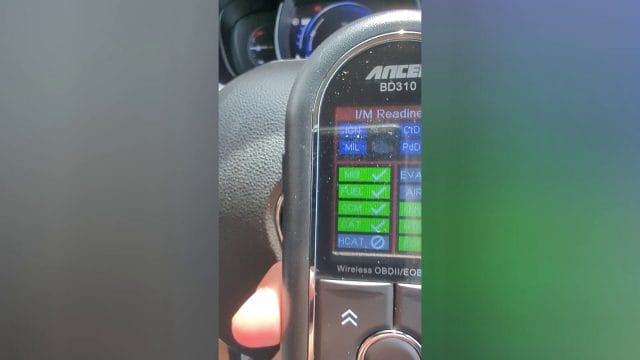
Below is a look at the device as it appears when first introduced and connected.
What the BD310 Can Do for You
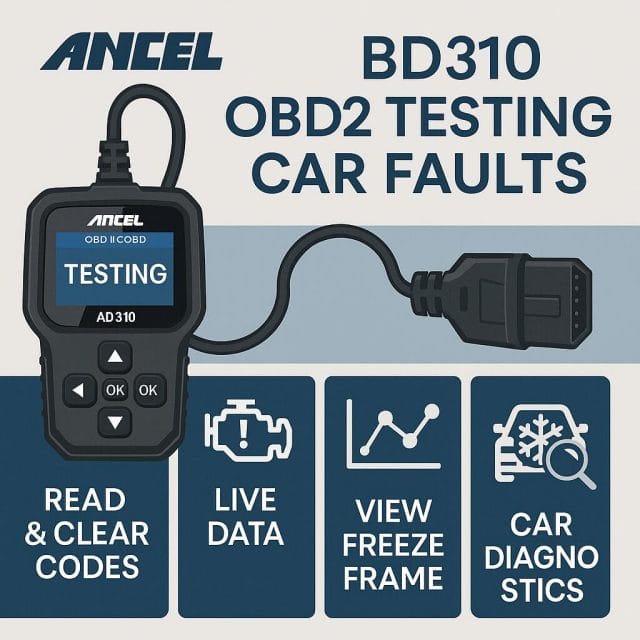
When you start using the BD310, you will find that its core strengths sit in a few key areas. Each of these areas addresses a common situation you are likely to face with a modern car. The device is effective because it focuses on tasks that make a difference during fault finding and routine checks.
- Read current faults and pending faults. The device queries the engine control system and returns a list of codes that the car has stored. Pending faults are issues that the car has seen recently but has not confirmed as permanent.
- Clear stored faults after you have noted them. Clearing codes removes the stored errors and turns off the warning light if the underlying issue has been fixed or if you are beginning a fresh test after maintenance.
- Check OBD status at a glance. The device displays readiness monitors, which show whether the car has completed its self checks for emissions related systems.
- View live data, including engine speed in revolutions per minute. Live data helps you see what is happening right now, which is useful when diagnosing a hesitation, an erratic idle, or a misfire.
- Connect to a phone over Bluetooth. The mobile app offers a larger display, more visualisation options, and logging that can help during longer test drives.
These are small tasks when you look at each one alone. Together they form a powerful workflow that allows you to approach a fault methodically. You move from seeing a light on the dashboard to reading a code, searching for what that code means, inspecting live data for clues, fixing an issue, and finally clearing the code and confirming that the car is happy.
A Quick Orientation to the OBD Port and Codes
The OBD port is usually found under the dashboard on the driver side. In many cars it sits above the pedals or just behind a small plastic cover near the lower centre console. Some cars place it in the passenger footwell or behind a trim panel in the glove compartment. It is a small rectangular connector. You do not need tools to access it and you cannot accidentally connect the device the wrong way around because the shape prevents that. The BD310 draws power directly from the port when the ignition is on, so you do not need to charge it first.
Diagnostic trouble codes follow a standard format. For example, P0301 means the system detected a misfire in cylinder one. P0171 indicates that the engine is running lean on bank one, which could point to a vacuum leak, a faulty sensor, or fuel delivery issues. P0420 points to the catalytic converter efficiency being below threshold, which can be related to oxygen sensors or the converter itself. The BD310 will display the code and a plain language description. This description is a helpful starting point, but take the time to consider the broader context of the car, recent work, fuel quality, and any other symptoms like rough idle or poor fuel economy.
Setting Up and First Connection
Connect the device to the OBD port with the ignition switched off. Once the connector is fully seated, turn the ignition to the accessory position or start the engine if required by your car. The BD310 powers on and goes through a brief start up. You will see its main menu on the screen. The options are arranged in a clear order, with the OBD diagnosis functions easy to reach. The buttons are responsive, and the labels on screen are plain, which keeps the process calm and deliberate.
When you connect for the first time, the device will establish a session with the engine control module. This can take a few seconds. You will see a progress indicator while it negotiates the connection protocols. Once connected, you can enter the OBD section. From there you can choose to read codes, clear codes, view live data, check freeze frame data, and see the readiness status. These functions are core to OBD and they follow a sequence that is worth learning. In most cases you will read codes first, then explore live data, and only later clear the codes when you are satisfied that you have captured what you need.
Reading Codes the Right Way
Begin by selecting the option to read codes. The BD310 will query the car and return several categories. Stored codes are those that have been confirmed and set the warning light. Pending codes are flagged by the system because it saw a condition that might be a fault, but it needs to see it again before it confirms it. Permanent codes are stored by some vehicles to comply with emissions rules. They cannot be cleared immediately and will only go away after the car is satisfied that the problem is resolved and the relevant checks have completed.
As you read the codes, write them down or take a picture with your phone. Note the exact code and the description on screen. If the device shows freeze frame data, open it and record that as well. Freeze frame is a snapshot of important sensor values at the moment the fault was set. It may show the engine speed, coolant temperature, throttle position, calculated load, and more. These clues can narrow down the cause. For example, if a lean condition was recorded at idle with low airflow and the engine was cold, your diagnostic path will look different from a lean condition recorded at high speed under load.
After you have recorded the codes and any freeze frame information, resist the temptation to clear them immediately. It is often better to perform some checks first and use live data to confirm or rule out a suspected cause. Clearing codes resets the OBD readiness monitors, which means you will need to complete a drive cycle to restore them. In some areas this can affect an emissions test or MOT if monitors are incomplete. Use the ability to clear codes when you need to reset the system after a repair or when you are working through a structured test plan.
Checking OBD Status and Readiness Monitors
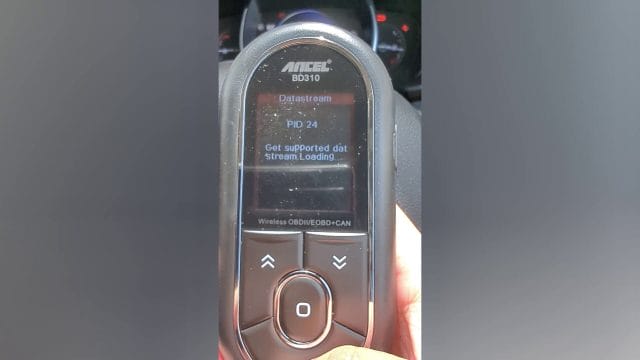
One of the most useful features on the BD310 is the OBD status view. It summarises whether the car has completed its internal checks for emissions related systems. These checks are called readiness monitors. Some monitors are continuously tested, while others run only under specific conditions such as a cold start, steady speed, or deceleration. The device presents a list of monitors with a status of complete, not ready, or not supported.
The typical list includes items like the oxygen sensor monitor, the catalytic converter monitor, the evaporative emissions system monitor, the EGR monitor, and the misfire monitor. A complete status means the car has run that self test successfully since the last reset. Not ready means the car has not yet had the right conditions to run the test. Not supported is normal for features that your car does not have.
This view is especially helpful after you clear codes or disconnect the battery. You can use it to plan your drive so that the car encounters the right conditions to complete the tests. For example, a catalytic converter monitor often needs the engine to reach a certain temperature and then be kept at a steady speed for a while. An evaporative system test might run after an overnight soak when the fuel level is within a certain range. The BD310 makes this practical by showing you what remains incomplete in a simple list rather than guesswork.
Here is how that status looks when you dive into the menus.
Clearing Codes with Care
The ability to clear codes is powerful, and with the BD310 it is very easy. When you select the option to clear codes, the device will remind you that this action will erase stored fault information and reset readiness monitors. The warning light may turn off after this, but it will come back if the fault persists. It is best practice to clear codes only after you have documented them and after you have addressed the root cause, or when you are intentionally beginning a confirmation drive after a repair.
Before you clear codes, consider these steps:
- Record all codes and freeze frame data. Take photos so you have a record of the exact conditions.
- Check live data for obvious outliers. Look at coolant temperature, oxygen sensor readings, fuel trims, and air flow where applicable. A suspicious reading might point to a sensor or wiring fault.
- Perform a visual inspection under the bonnet. Check for loose connectors, split vacuum hoses, oil in connectors, and signs of arcing around ignition components.
- If you have done work on the car, confirm all clamps, hoses, and connectors are seated and secure.
Once you are ready, select clear codes on the BD310. Follow the on screen prompt and wait while it completes the command. The device will confirm when the memory has been cleared. After this, check the OBD status page. You will notice many monitors are now listed as not ready. That is normal. Plan a drive that includes a variety of conditions so the car can run through its self checks. After your drive, check the status again to confirm that monitors have moved to complete and that no faults have returned.
Using Live Data and Monitoring RPM
Live data is where an OBD scanner becomes more than a code reader. The BD310 can display live sensor values. Among the most approachable of these is engine speed, which the device presents as revolutions per minute. Watching engine speed tells you about idle behaviour, response to throttle input, and overall smoothness. It also anchors other readings. For example, fuel trims and oxygen sensor behaviour change with engine speed and load, so seeing them alongside RPM helps you make sense of the numbers.
At idle, most petrol engines sit around seven hundred to nine hundred revolutions per minute when fully warm. If you see the speed hunting up and down, it can indicate a vacuum leak, a sticking idle control valve, or a misfire. If the idle is very high and fails to settle, air may be entering the engine past a seal or a throttle body may be dirty. If it is very low and the engine threatens to stall when coming to a stop, the system may be struggling with an air or fuel issue. Use the BD310 to observe the pattern. Pair the observation with other data such as throttle position and airflow if available.
When you gently raise the throttle, the RPM should rise smoothly without sudden dips or surges. A hesitation or a flat spot could point to ignition problems, fuel delivery issues, or sensor readings that are out of range. The BD310 makes it easy to watch these changes in real time. If you prefer a larger view, connect the device to your phone and use the app to show a graph of engine speed over time. This is especially helpful during a short test drive on a quiet road where you can safely observe how the engine responds under different loads.
How to Connect the BD310 to a Mobile App
Although you can do almost everything from the device screen, some people like the convenience of a phone. The BD310 supports Bluetooth, which means you can pair it with the companion mobile app and see the same OBD information on your phone. The process is straightforward and takes only a couple of minutes once you have set it up the first time.
- Install the companion app on your phone. You will find it in the app store for your device. Make sure you install the official app recommended by the manufacturer so that you get the best compatibility.
- Plug the BD310 into the car and turn the ignition to the accessory position or start the engine if needed. Ensure the device is on and ready.
- Open the app on your phone. The app will prompt you to allow Bluetooth. Grant the permission so the phone can discover and connect to the device.
- Look for the BD310 in the list of available devices. It will appear with a name that matches the model or a code listed in the manual.
- Select the device and complete the pairing. If the app asks for a pairing code, check the manual. Many devices use a simple default code.
- Once connected, the app will show the same OBD functions. You can read and clear codes, view live data, and in many cases customise which parameters you see on screen.
One of the most popular reasons to use the app is the live graphing. A graph makes trends and intermittent issues easier to spot. For example, a misfire might cause a rhythmic dip in RPM under a certain load. A sticking sensor might show a flat line where the value should be changing. With the app, you can also log data during a drive and review it later with more attention than you can give while sitting behind the wheel.
Safety matters here. Set up the connection while parked. Do not attempt to fiddle with the phone while driving. If you need to observe live data during a drive, have a passenger handle the phone or mount it securely where it does not obstruct your view. Keep your attention on the road first and the data second.
Interpreting Common Codes with the BD310
When you use the BD310 to read codes, you will eventually encounter a few that come up often. Knowing what they point to and how to proceed can save time and reduce frustration. The following are typical examples and ways to use the tool to gain clarity.
- P0300 and related misfire codes. P0300 means random or multiple misfires. P0301 through P0304 indicate a misfire in specific cylinders on a four cylinder engine. Start by noting when the misfire occurs. Use live RPM to see if the stumble is present at idle or only under load. Inspect ignition components like coils and leads. If the car uses coil packs, swap coils between cylinders to see if the misfire moves. Look at fuel trims to see if the engine is compensating for a lean or rich condition.
- P0171 lean condition on bank one. A lean code means the engine control unit is adding fuel to reach the target. Look for vacuum leaks, cracked hoses, or a loose intake boot. Use the BD310 to watch short term and long term fuel trims at idle and at a steady cruise. If trims are high at idle and improve with higher RPM, a vacuum leak is likely. If trims are high across the range, consider a weak fuel pump, a clogged filter, or a sensor that is under reporting airflow.
- P0420 catalyst efficiency below threshold. Use the BD310 to watch the upstream and downstream oxygen sensor behaviour if available. The upstream sensor should switch between rich and lean, while the downstream sensor should be more stable when the catalyst is working. If both switch in a similar way, the catalyst may be tired. Check for exhaust leaks near the sensors as well, as leaks can confuse the readings.
- Evaporative emissions system codes. These often relate to a loose fuel cap or small leaks in the system. Check the fuel cap first. Clear the code with the BD310 and see if it returns. The system may need a few drive cycles to complete its test. Use the readiness view to confirm when the evaporative monitor has run.
With each of these codes, the BD310 serves as a guide. It shows you the evidence, allows you to verify changes after you make a repair, and keeps track of readiness so you know when the car has finished checking itself. This is the value of a scanner that is both simple and capable. It does not overwhelm you with an ocean of data, yet it gives you enough to make informed decisions.
Practical Workflow for a Typical Fault
Imagine the check engine light comes on during your commute. The car seems to run fine, but you want to know what is happening before it becomes a bigger problem. Here is a practical sequence using the BD310.
- Connect the BD310 and read the codes. Note the code and description. Open the freeze frame and record those readings.
- Read the OBD status. See which monitors are complete. If most monitors are complete, the fault occurred after normal operation, which can help isolate timing.
- Use live data to observe key parameters relevant to the code. For a lean condition, watch fuel trims and airflow. For a misfire, watch RPM steadiness and perhaps misfire counters if the car reports them.
- Perform a quick visual inspection under the bonnet and around the intake and exhaust. Look for loose clamps, obvious cracks, or disconnected plugs.
- Address any obvious issues. Tighten a loose clamp, replace a cracked hose, or re seat a connector.
- Clear the codes with the BD310. Confirm that the warning light turns off. Check the OBD status and note that monitors are now not ready.
- Drive the car through a mixture of conditions. Allow it to idle from cold, cruise at a steady speed, and include several gentle accelerations and decelerations.
- Return and check the OBD status again. Confirm that monitors have completed and that the fault has not returned.
This method keeps you organised. It avoids guessing and reduces the chance that you clear useful information before you have captured it. It also respects the way modern cars monitor their systems, which can prevent wasted effort.
Understanding the Impact of Clearing Codes
It is worth spending a moment on what happens after you clear codes. When you erase fault memory, the car forgets not only the faults but also the learned adaptations for certain systems. It will rebuild this information as you drive. Until then, fuel trims and idle control may take a short time to settle. This does not mean there is a new problem. It simply reflects the process of the engine control unit relearning.
Clearing codes also resets readiness monitors. In practical terms, if you clear codes and then go for an MOT on the same day, your car may fail because the monitors are not ready, even if there are no faults. To avoid this, clear codes only when necessary and plan a decent drive before a test. The BD310 makes this manageable because you can check readiness status at home and avoid an unnecessary trip.
What Makes the BD310 Easy to Use
The device is straightforward in part because it respects a simple principle. Good tools get out of your way. The BD310 menus are clear, the options are where you expect them to be, and the feedback on screen is direct. When you press read codes, it reads the codes. When you select live data, it shows the values without fuss. The small touches matter too. Text is legible, navigation is predictable, and the device responds quickly to inputs.
For first time users, this matters a great deal. Confidence grows when you can move through a task without second guessing what the device is doing. For experienced users, the lack of clutter speeds up routine work. When combined with the option to connect to a phone for more visual data, it provides a good balance between simplicity and depth. You decide where to focus depending on the situation and your comfort level.
Preparing for a Diagnostic Session
Even a short diagnostic session benefits from a little preparation. A few minutes spent organising your process can save time later. Consider the following checklist before you begin with the BD310.
- Know where your OBD port is located. A quick search or a glance in the manual can save a fumble under the dash.
- Have a notepad or a phone ready to record codes and freeze frame data. A photo can be faster than writing and it preserves the exact details.
- Make sure the car has a reasonable amount of fuel. Some readiness monitors will not run if the tank is very full or nearly empty.
- Plan a short route that includes a variety of speeds. A mix of urban and light dual carriageway driving helps complete monitors.
- If you intend to use the mobile app, install it ahead of time and grant the necessary permissions.
With these things in place, you can focus on the task of reading the car rather than the logistics of the process. The BD310 then becomes an extension of your attention rather than a distraction.
Live Data Beyond RPM
Although RPM is a great starting point for live data, the BD310 can usually show multiple parameters. While not all cars report the same set of values, most will provide a core group of useful items. Learning to read a few of these will elevate your diagnostic ability.
- Coolant temperature. This tells you whether the engine has reached normal operating temperature. A low temperature at speed can indicate a thermostat stuck open. A high temperature can point to cooling system issues.
- Short term and long term fuel trims. These values indicate how the engine control unit is adjusting fuel delivery. Positive numbers mean it is adding fuel to compensate for a lean condition. Negative numbers mean it is removing fuel to compensate for a rich condition.
- Throttle position. This shows how far the throttle is open. It helps correlate driver input with engine response.
- Airflow or manifold pressure. Depending on the car, you may see mass airflow readings or manifold absolute pressure. These relate to how much air the engine is taking in.
- Oxygen sensor readings. These indicate whether the engine is running rich or lean and how the catalytic converter is performing.
Use these in combination. For instance, if you have a lean code and see high positive fuel trims at idle that improve as RPM rises, suspect a vacuum leak. If trims are high at all times and airflow seems low at a given RPM, consider a mass airflow sensor issue. If coolant temperature never reaches normal, fuel trims and idle control may be affected, which can mislead your interpretation of other data. The BD310 gives you the view. Your job is to connect the dots with a systematic approach.
When to Use the App and When to Stay on the Device
Different situations call for different tools. The BD310 by itself is compact and quick. It shines when you need to grab a code, clear an error after a repair, or check readiness before an MOT. It is also ideal when you are working in tight spaces or when you prefer to keep your phone out of the way for safety or focus.
The mobile app comes into its own when you want to visualise live data or log a longer session. It is also helpful if you are explaining a concept to someone else. A graph of engine speed or fuel trims is easier to discuss when it fills a phone screen. If you are teaching a student driver why smooth throttle input matters, seeing the RPM trace encourages good habits. If you are chasing an intermittent fault that only occurs during a twenty minute drive, the ability to capture and review data is valuable.
Neither approach is better in all cases. The strength of the BD310 is that it gives you both choices. Use the device for quick checks and the app for deeper dives. Switch between them as needed. Once you have paired the device, moving between modes becomes second nature.
Avoiding Common Pitfalls
Using an OBD scanner is simple, but there are traps that can make the process frustrating. The good news is that with a little awareness you can avoid them and keep your diagnostic work smooth.
- Do not clear codes before you have recorded them. Once cleared, you lose freeze frame and the timing information that can be vital.
- Do not assume a code points to a single failed part. Codes report symptoms, not always the exact cause. Use live data and inspection to confirm.
- Do not skip checking readiness before an emissions test. A car with incomplete monitors may be turned away even if no light is on.
- Do not ignore basic maintenance. A clogged air filter, worn spark plugs, or old sensors can skew readings and create confusing symptoms.
- Do not chase multiple changes at once. Make one change, test, record results, then proceed. This helps you learn what actually fixed the issue.
The BD310 supports this disciplined approach. Because it is quick to connect and clear to read, it encourages you to check, confirm, and proceed step by step. That is the heart of effective diagnosis. A calm pace and a tidy record of what you see will bring more success than any single trick.
Real World Scenarios Where the BD310 Shines
There are moments when having the right tool transforms a day. Consider a few common scenarios and how the BD310 helps you move forward with clarity.
- A warning light appears on the way to work. At lunch, you plug in the BD310, read a code for an oxygen sensor heater circuit, and confirm the car drives normally. You plan a proper check at the weekend and avoid needless worry or an urgent trip to a garage.
- The car fails an emissions test. You connect the BD310, see that several readiness monitors are incomplete because the battery was recently disconnected, and you plan a proper drive cycle. After monitors complete and no codes return, you go back for a successful test.
- You installed new ignition coils to fix a misfire. You clear the codes with the BD310, test drive, and confirm no faults return. You also observe smoother RPM at idle, which confirms your seat of the pants impression with objective data.
- You suspect a vacuum leak. The BD310 shows high positive fuel trims at idle, which drop toward normal at higher RPM. This pattern supports your suspicion, and you focus your inspection on hoses and intake seals.
These are simple but meaningful wins. They illustrate the peace of mind that comes from being able to look your car in the eye, so to speak, and ask it how it feels. The BD310 provides that voice in an accessible way.
Care and Handling for Reliable Use
A small device can live a long and useful life if you treat it well. Keep the BD310 in a clean, dry place when not in use. Avoid leaving it on the passenger seat where it can slide and fall. Coil the cable loosely rather than bending it sharply. When you connect and disconnect the device, grip the plug rather than the cable. These small habits protect the contacts and the wire, which in turn protect the stability of your connection.
Update the mobile app when updates are available. Manufacturers sometimes refine the way the app presents data or improves compatibility. If the device itself supports firmware updates through the app, follow the instructions carefully and ensure the car battery is healthy before you begin. A stable power supply prevents interruptions that could leave the device in an incomplete state.
Why Ease and Clarity Matter in Diagnostics
There is a reason the transcript emphasises that the device is easy and straightforward. In the heat of a problem, when a warning light is on and a trip is looming, complexity becomes the enemy. The BD310 steps in with clarity. It gives you facts without ceremony. It lets you test, learn, and act. That simplicity empowers people who might otherwise feel excluded from modern cars. It also complements experienced enthusiasts who value a tool that respects their time.
If your goal is to maintain your car with confidence, to prepare for trips, or simply to satisfy curiosity about how the engine is doing, the BD310 is a natural fit. When paired with a phone, it scales up to more detailed work. When used on its own, it accomplishes ninety percent of what you need in the space of a few minutes. That is a rare balance, and it is why tools like this tend to become constant companions in the glove compartment or the toolbox.
With this foundation, you are ready to walk through more specific workflows, explore deeper readings in live data, and use the mobile app to visualise trends. Along the way you will build an understanding of your car that pays off every time a small change in behaviour catches your attention. The BD310 is not just a code reader. It is a bridge between the car and the person who cares for it, providing a clear, consistent, and practical view into its health.

If this article helped you in any way and you want to show your appreciation, I am more than happy to receive donations through PayPal. This will help me maintain and improve this website so I can help more people out there. Thank you for your help.
HELP OTHERS AND SHARE THIS ARTICLE
LEAVE A COMMENT