When a new release of a video editor lands, it is always worth testing whether lingering playback issues have been addressed. In this session I work through the upgrade from Wondershare Filmora 15.2.4 to 15.2.5 with one clear objective, to see if the update improves a persistent jitter during playback and export. Below I walk through the process, explain what each step does under the hood, and share practical checks you can run to diagnose jitter in your own projects.
Checking for the update and preparing to install
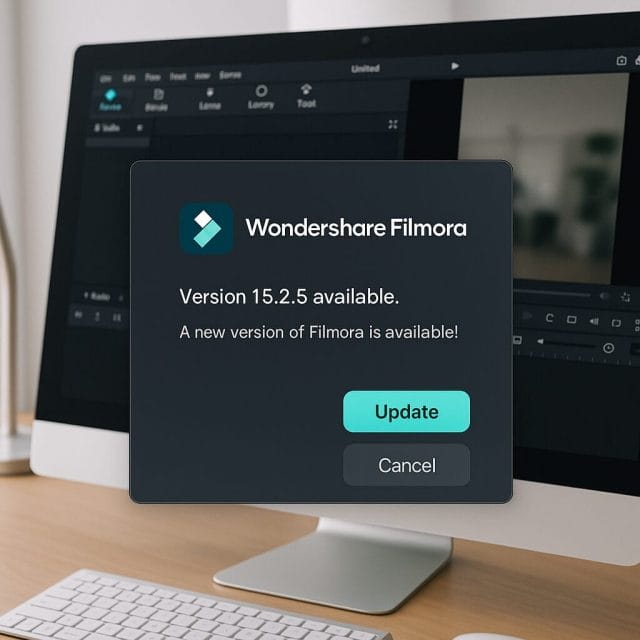
Filmora includes a built in updater that lets you check for new versions directly from the application. Starting from 15.2.4, the updater confirms that 15.2.5 is available. Version bumps of this type often target stability, performance, and bug fixes rather than wholesale feature changes, so they are exactly the sort of maintenance release that can smooth out playback cadence and preview stutters. Before installing, it is wise to save open projects and note any custom settings, as some preferences can be reset when the app refreshes its environment.
Installing 15.2.5 and restarting the application
With the new version confirmed, the installer takes over and applies the update. This stage replaces application binaries and refreshes dependencies to ensure the latest performance improvements are loaded at start up. When the update completes, a restart is required so Filmora can reinitialise its media engines, hardware acceleration bindings, and codec libraries. Some updates introduce optimisations to timeline playback, GPU decoding, or render threading, all of which can influence whether motion appears smooth during cuts and transitions.
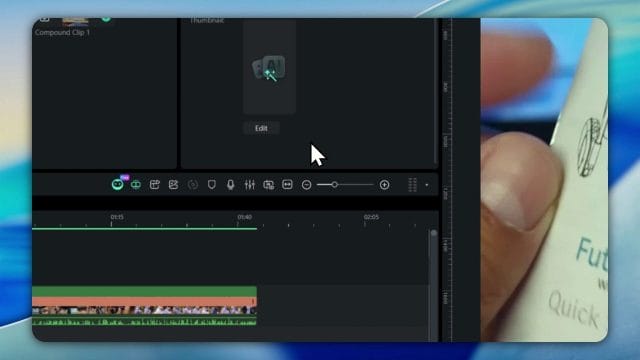
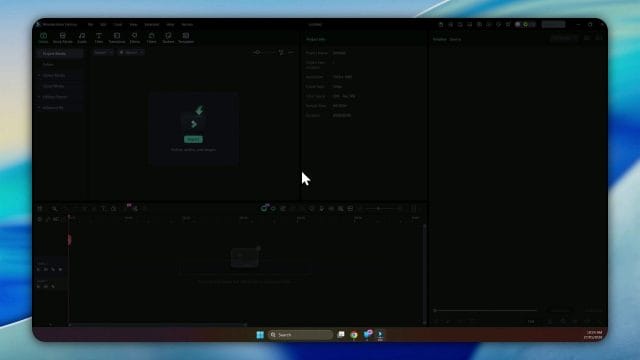
On launch, Filmora performs environment testing. This brief check inspects your hardware capabilities, drivers, and available resources to decide whether to use GPU acceleration for decoding and effects, or fall back to CPU paths. It can also rebuild caches and verify plugins. If jitter has been related to driver quirks or mismatched acceleration, an environment refresh can sometimes resolve the issue without further changes.
Loading a known problematic project
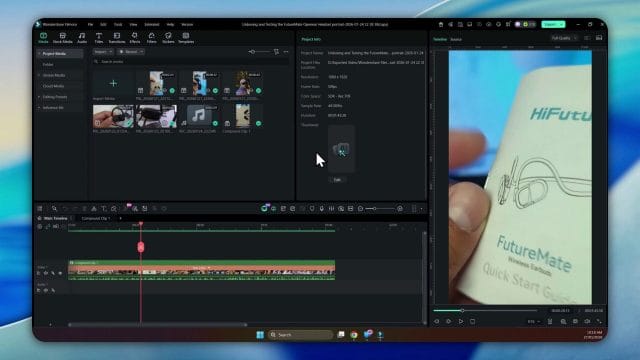
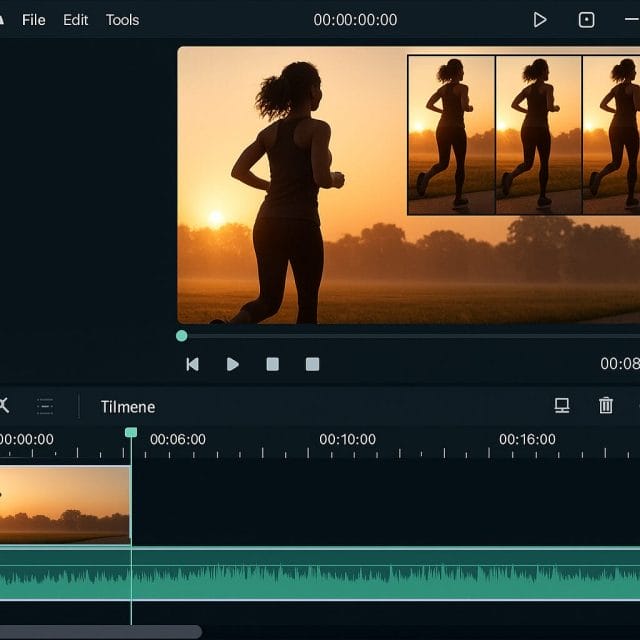
Once updated, the best way to evaluate improvement is to open a project that previously exhibited the problem. Here I load a clip from an early morning run, a sequence with consistent motion that makes cadence issues immediately obvious. By testing the same timeline at the same playback point, you remove variables and can focus on whether frame pacing and preview responsiveness have changed.
Revisiting performance settings and hardware acceleration
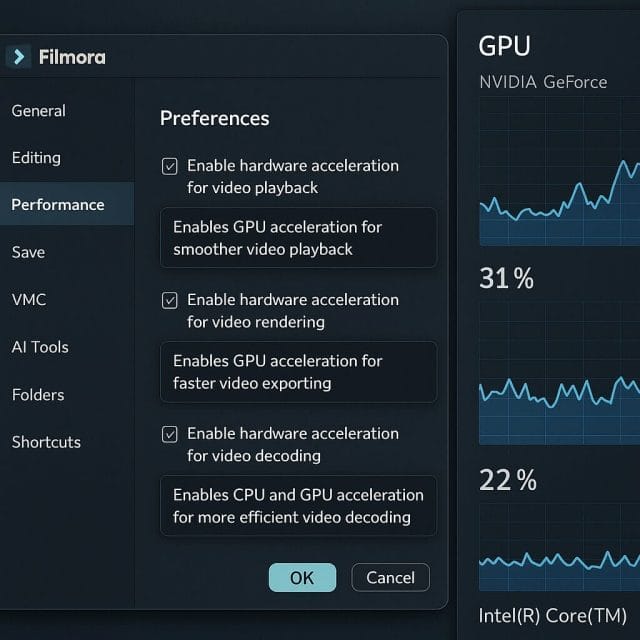
One crucial troubleshooting step is to revisit performance preferences. In Filmora, hardware acceleration can be a double edged sword. When drivers and codecs align, GPU acceleration delivers smooth decoding, faster effects, and responsive scrubbing. When they do not, you may see micro stutters or inconsistent frame delivery, especially with variable frame rate footage, certain H.264 profiles, or heavy filters on older cards. Disabling hardware acceleration for decoding or effects can restore consistent frame timing at the cost of higher CPU usage. The key is to toggle these options and observe changes on the same section of the timeline.
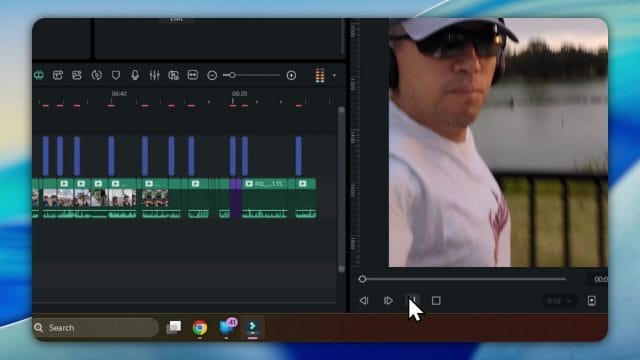
Beyond the acceleration toggle, confirm that your project settings match the source media frame rate and resolution, enable proxy files for high bitrate or long GOP footage, and set preview quality to a level your system can sustain. If jitter appears only during preview but not in the final export, it is usually a playback bandwidth or decoding path issue. If jitter persists in exported files, look at render settings, motion effects like stabilisation, and frame rate conversions.
Final thoughts
Upgrading to 15.2.5 is a sensible first step when chasing smoother playback, and the environment test plus a clean restart can clear out cached behaviour. Pair that with methodical checks of hardware acceleration, frame rate alignment, and proxy workflows, and you have a robust process for diagnosing jitter. Keep notes of what improves or worsens playback, and test with a short, repeatable clip like the morning run to quickly gauge the impact of each change.

If this article helped you in any way and you want to show your appreciation, I am more than happy to receive donations through PayPal. This will help me maintain and improve this website so I can help more people out there. Thank you for your help.
HELP OTHERS AND SHARE THIS ARTICLE
LEAVE A COMMENT