When I logged in this morning to create a new Google Slide, I was presented with a message about a new feature called Live Pointers. The message displayed was:
Collaborate more easily with live pointers
Let others see your pointer by selecting Show my pointer in the toolbar or View menu

I believe other tools like Canva already have a similar feature and all it basically does is show the presenter and other collaborators mouse pointers all at the same time.
Let me explain how it works. With this new feature, your team members can easily point out specific text or visual elements within a Slide to highlight important information and content. This is especially useful if you’re working on a presentation with multiple contributors or if you’re teaching a class online. You can simply hover your mouse over the element you want to highlight, and your colleagues will see your pointer in real-time. This makes it easy to collaborate and get your message across effectively.
HOW TO TURN ON THE LIVE POINTER FEATURE
There are several ways to turn on this feature.
TOOLBAR
The easiest way is to click on the Live Pointer icon in the toolbar
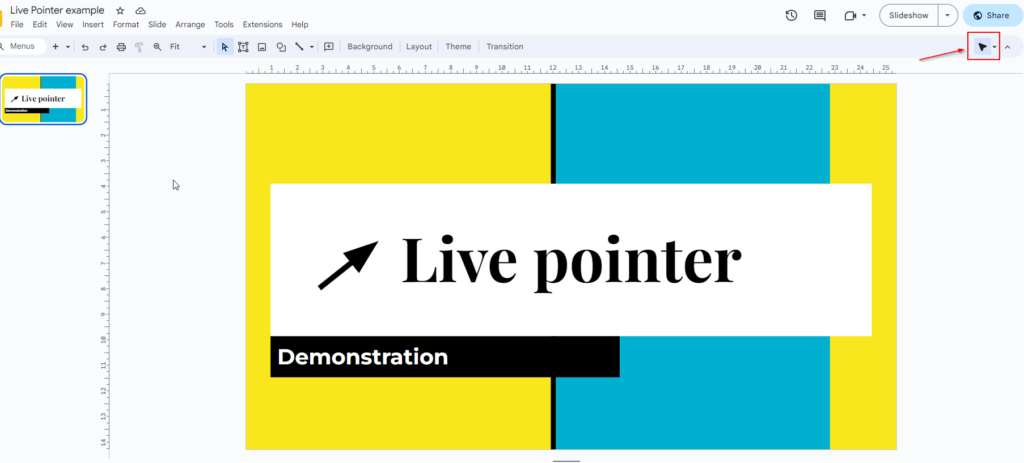
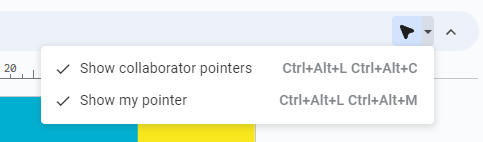
You will then have two options:
- Show collaborators pointers
- Show my pointer
SHORTCUT KEYS
You can also turn on these two options by using the shortcut keys like shown in the above image. The shortcut keys are
- Show collaborator pointers – Ctrl+Alt+L Ctrl+Alt+C
- Show my pointer – Ctrl+Alt+L Ctrl+Alt+M
MENU
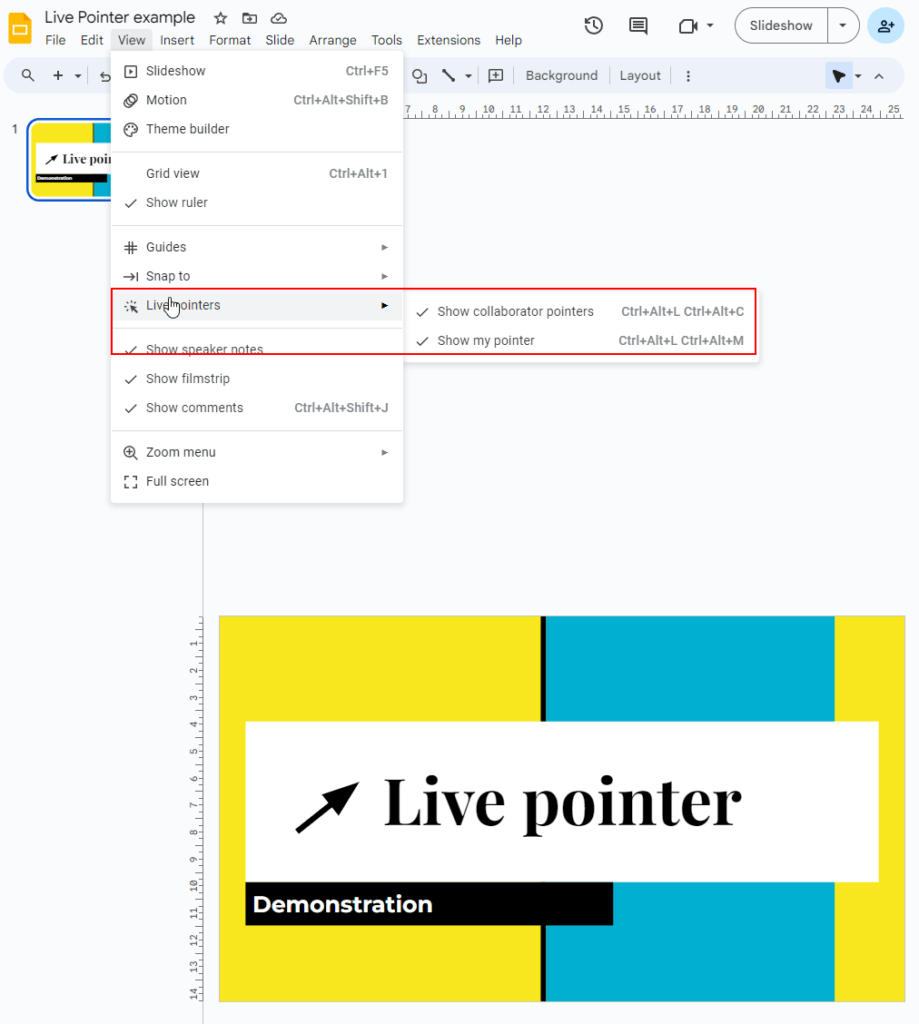
The last option available is to turn on these two options via the Menu. To do this click on View – Live Pointers like shown below.
Here’s a video showing how to use this new feature and I hope this helps. If it does, please like and subscribe to my channel and leave a comment.