If you tried running the npm command in the Visual Studio Code terminal and are getting an error saying that it doesn’t exist then you need to install NODE.JS
This is one of the error messages you will see:
npm: The term ‘npm’ is not recognized as a name of a cmdlet, function, script file, or executable program, check the spelling of the name, or if a path was included, verify that the path is correct and try again.
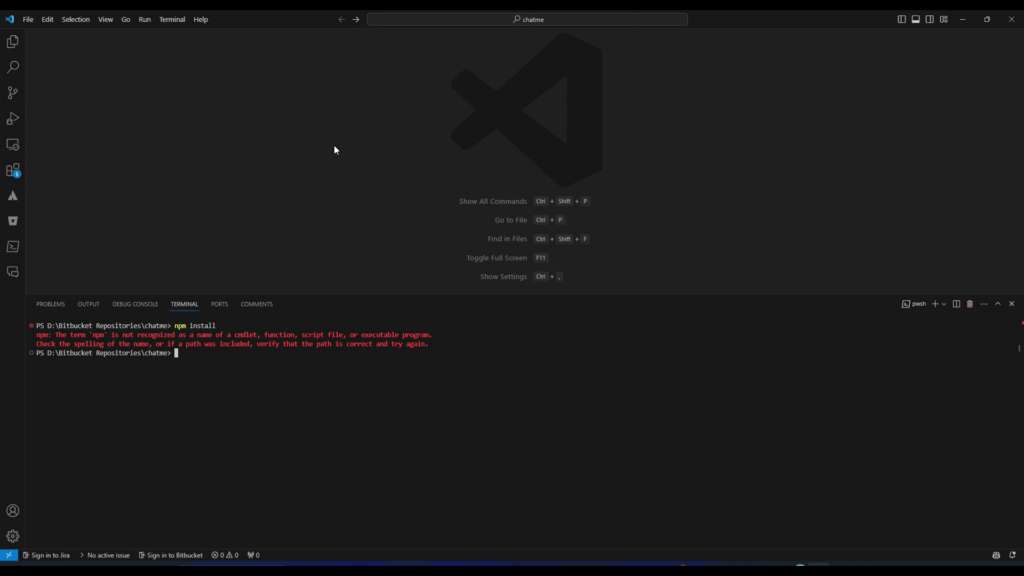
The steps involved for installing NODE.JS is easy to follow if you use the below steps:
- Download the Windows NODE.JS executable from here: https://nodejs.org/en/download/current
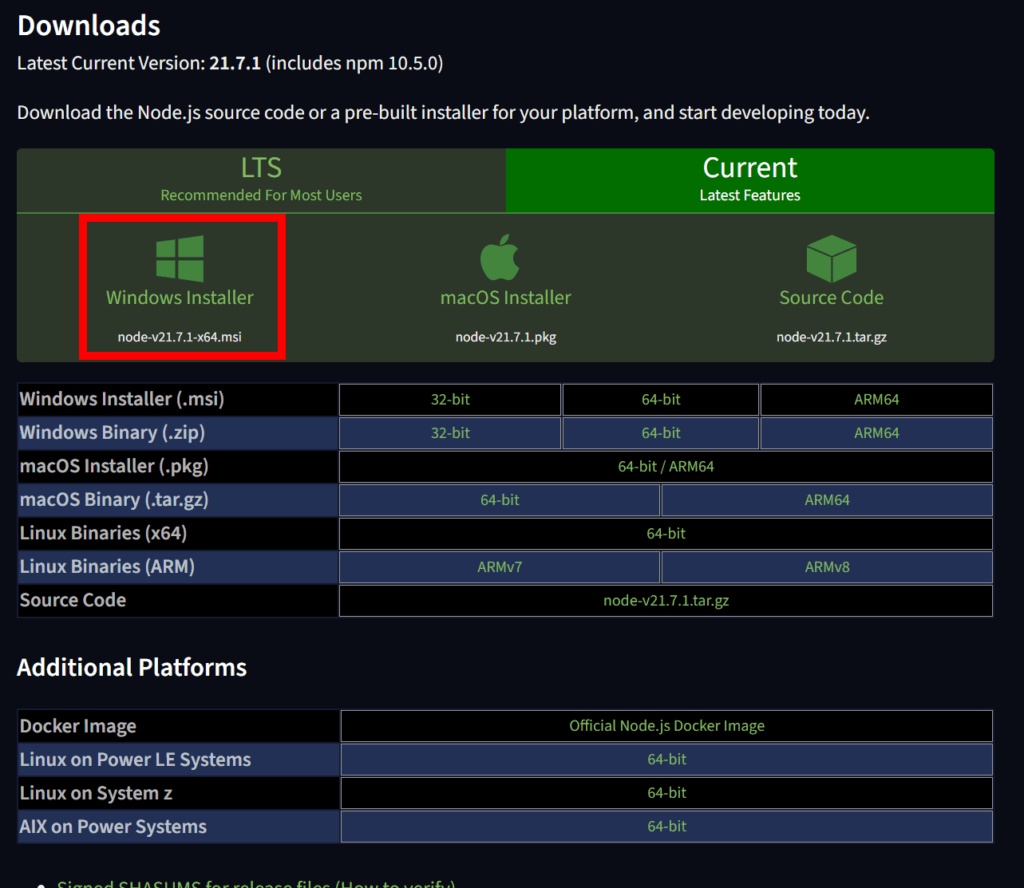
Once you download the file, make sure the Visual Studio Code application is not running and then install the executable
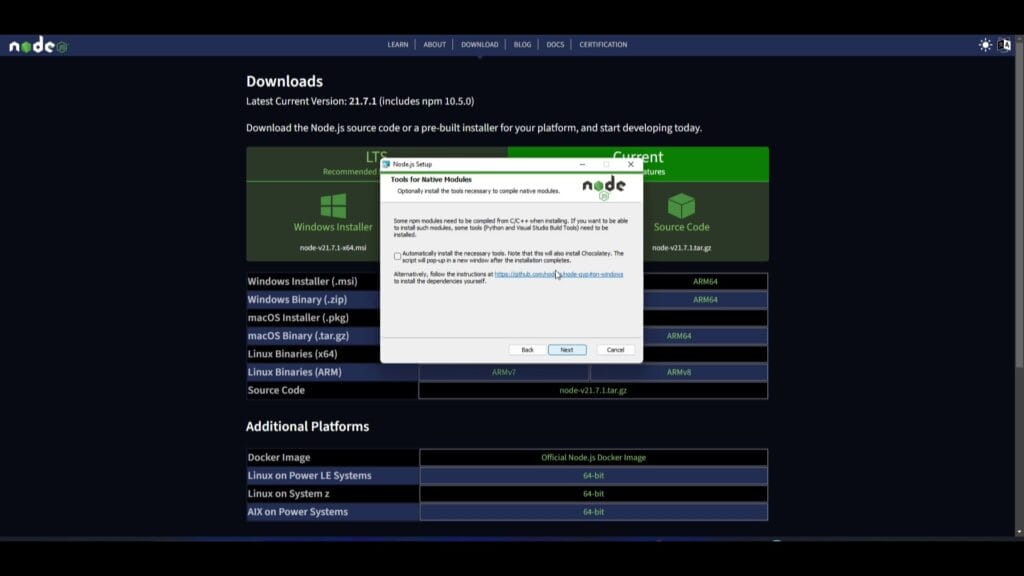
Once the installation is complete, make sure Visual Studio Code is not running and if it is, then you will need to close it down and start the program again. Open the terminal and then type:
npm -VYou will then see the version of NODE.JS that was install. In my case it is version is 10.5.0
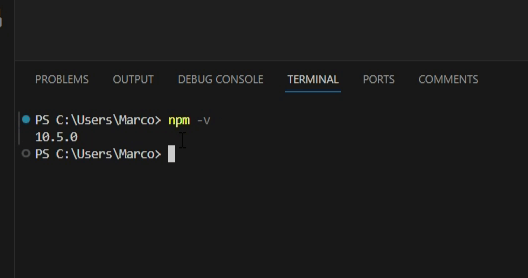
You can then run npm commands.
Here’s a video you can follow along on how to install npm NODE.JS in Visual Studio Code: