Displaying website content on a YouTube or Twitch stream is vital for any streamer but what happens when it doesn’t work after you’ve installed the latest version of OBS (27.1.3). You may not know this but OBS (Open Broadcaster Software) is used by thousands of streamers across the globe and one of the reasons for this is because OBS is open source and FREE.
If you’re using OBS and aren’t able to display the browser source in your scenes, then reading this article might help you fix this issue. I recently installed a fresh version of OBS version 27.1.3 on a computer and for some reason, I wasn’t able to display any content from the web source. Normally, this would have worked as the browser source is one of the most commonly used sources in OBS. I’ve never had this problem in the past but for some reason, I had to disable a setting to get it to work. Here are the steps I used to get the browser source working.
STEP BY STEP INSTRUCTIONS ON HOW TO FIX OBS BROWSER SOURCE NOT DISPLAYING
- Launch OBS Studio
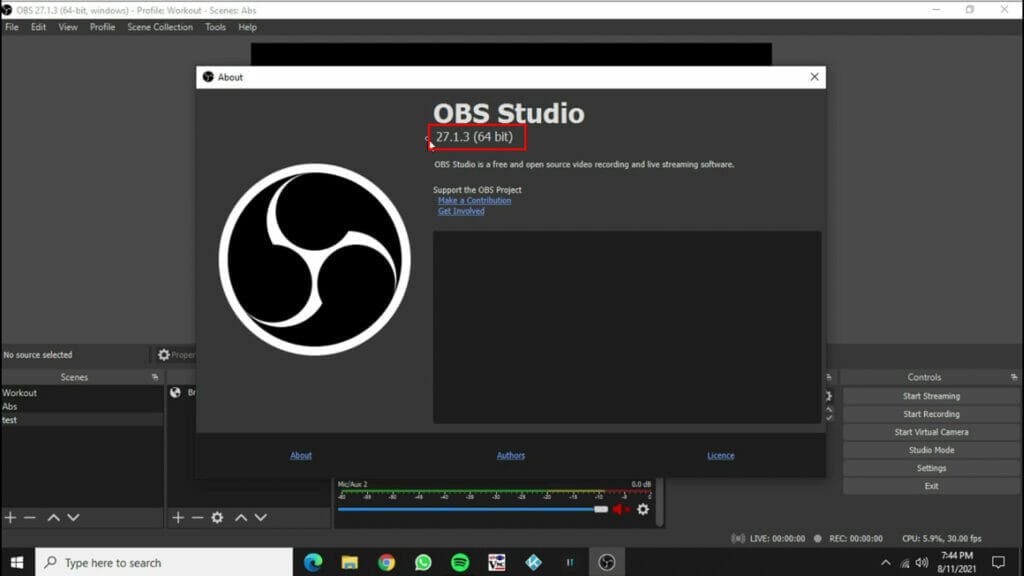
- Check the version of OBS by clicking on Help – About
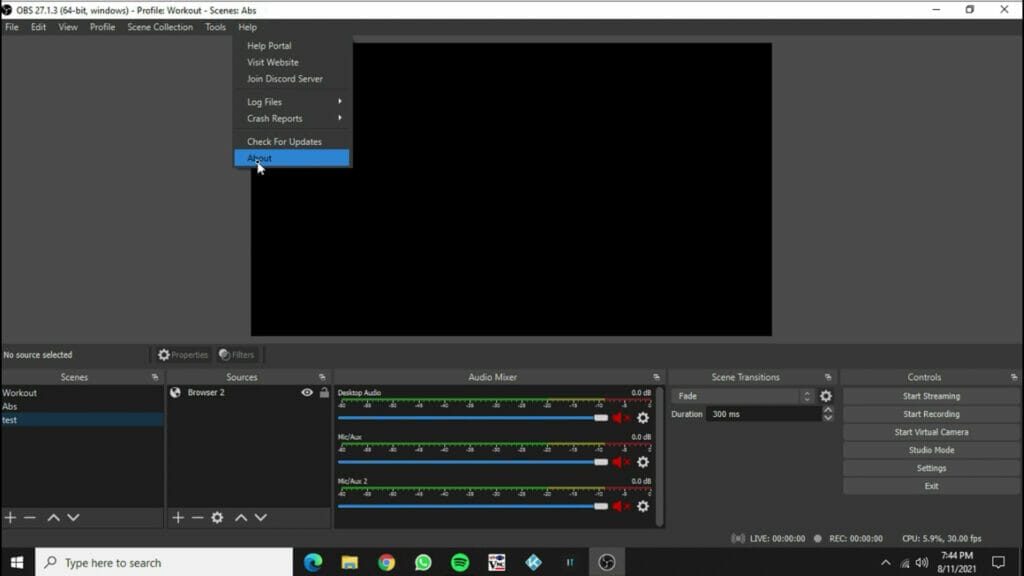
- The current version is 27.3.1 but it will probably work for older and newer versions as well
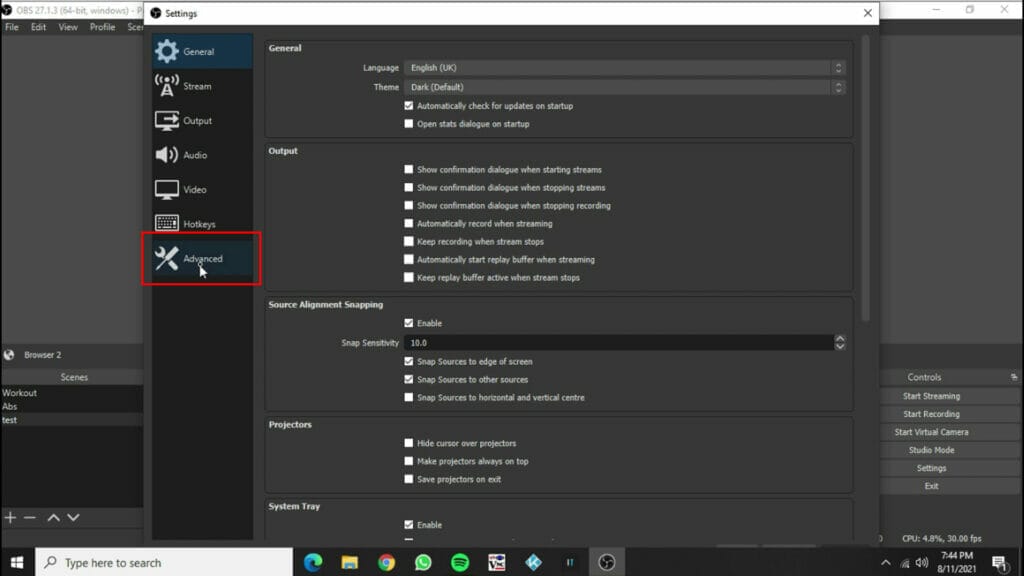
- Go to File – Setting
- Click on the Advanced Tab
- Deselect Enable Browser Source Hardware Acceleration
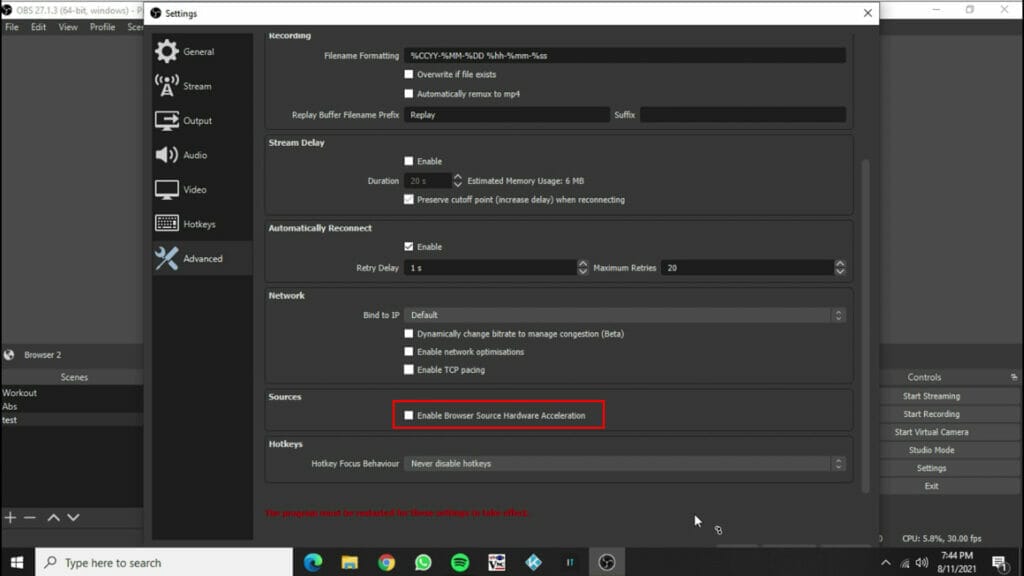
- Restart OBS and test the browser source
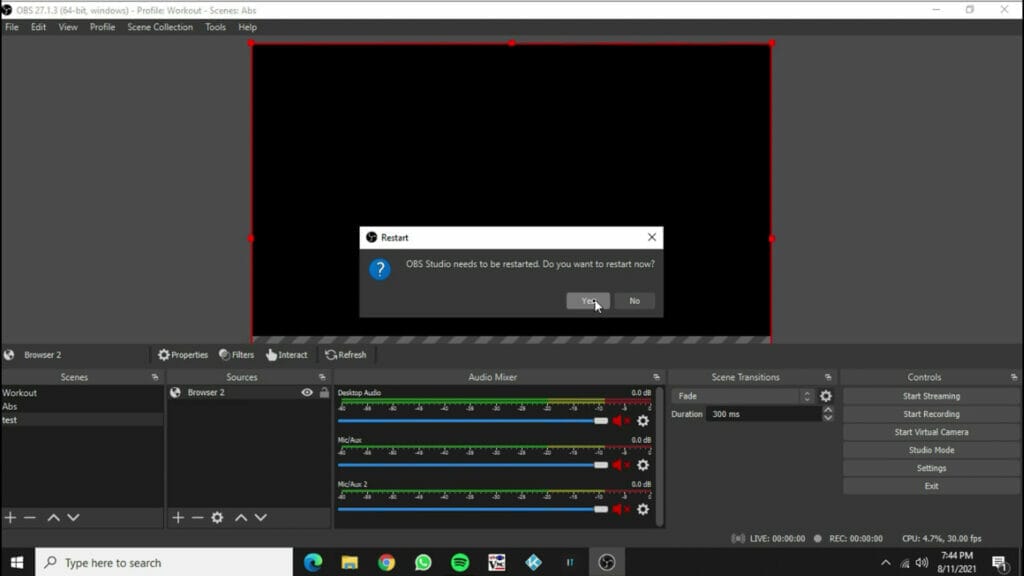
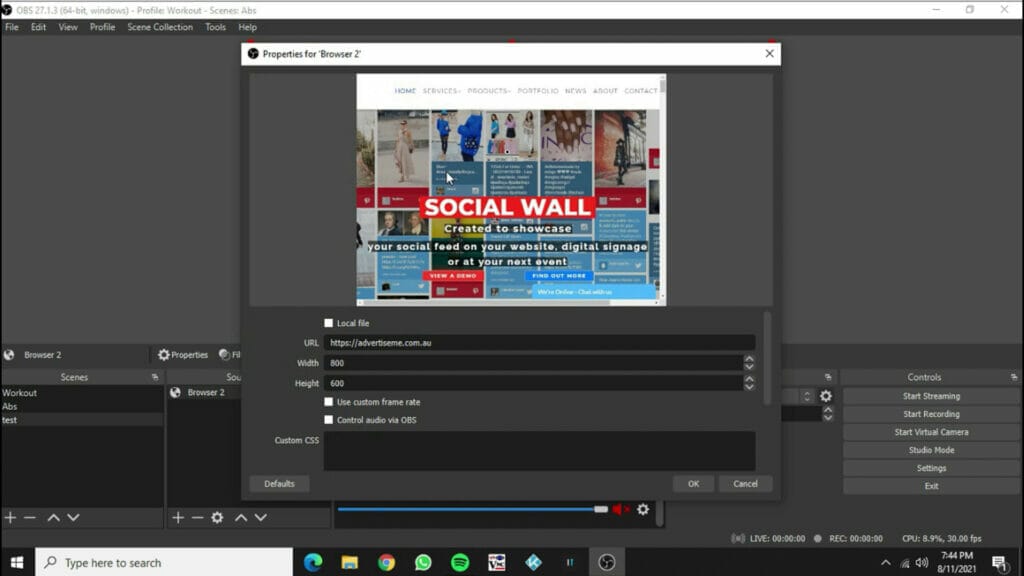
- OBS will now display the website content in the browser source. Simply add the
Here’s a video on HOW TO FIX OBS BROWSER SOURCE NOT DISPLAYING:
I hope this helps. If it did, please share this article or donate so I can create more useful articles like this.