We have covered several how to videos for OBS (Open Broadcaster Software) such as HOW TO FIX OBS BROWSER SOURCE NOT DISPLAYING, HOW TO INTERACT WITH A BROWSER IN OBS, HOW TO FIX OBS BLACK SCREEN DISPLAY CAPTURE ISSUE and in this article, we will cover how to add a Social Wall to OBS for a video stream event.
You will need to sign up for the Social Wall trial account, there is a 14-day trial with some sponsored ads to display the social wall. Note, when you upgrade to a paid account the sponsored ads will disappear.
- Once you login to the Social Wall account, copy the URL in the Your Social Wall (for secure websites use HTTPS) field

- Open OBS
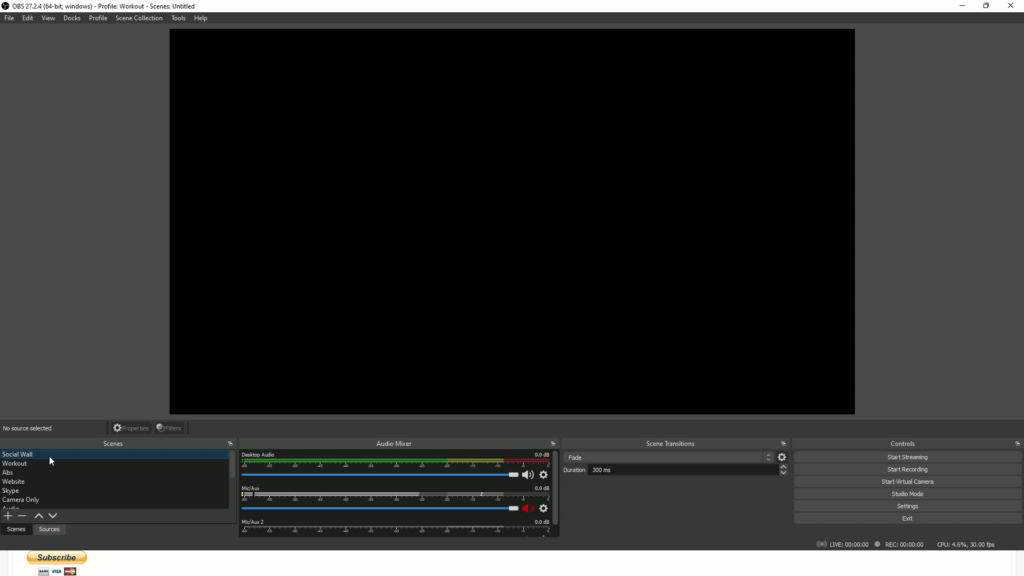
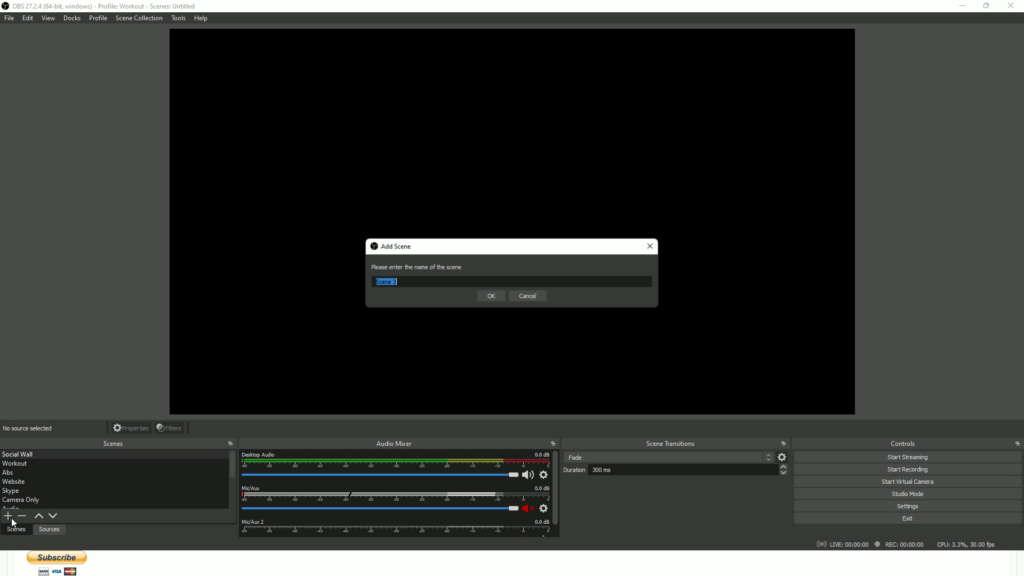
- Add a Scene
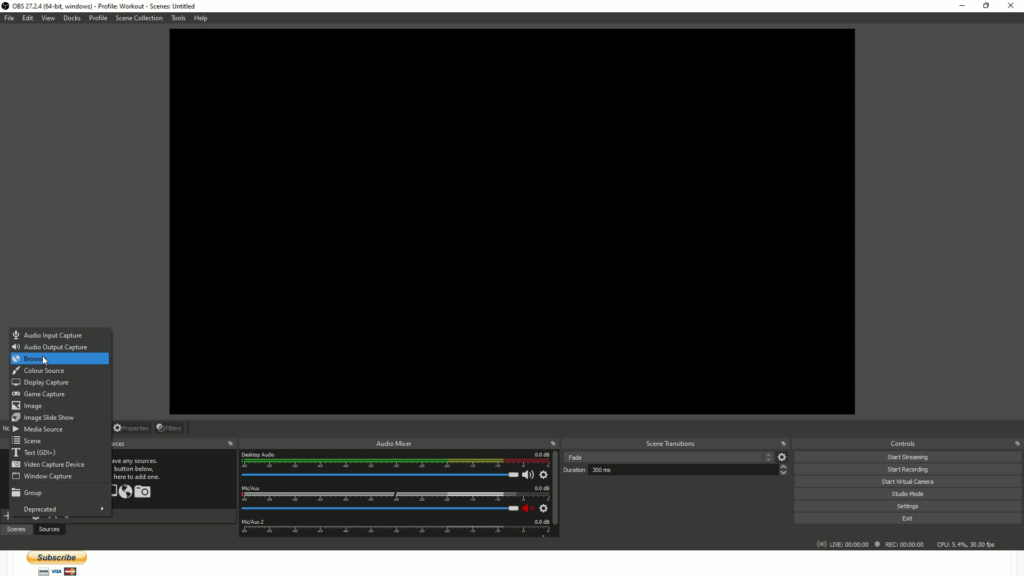
- Add a Browser Source
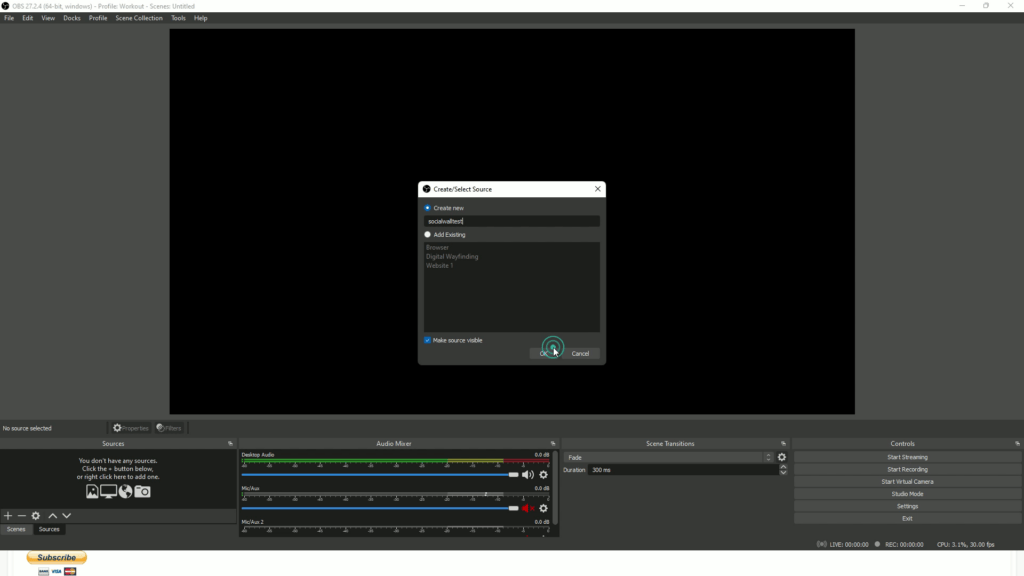
- Paste the URL

- Set the Width to 1920 and Height to 1080 or match the resolution of the screen you’re using

- Click Start Streaming to stream the Social Wall
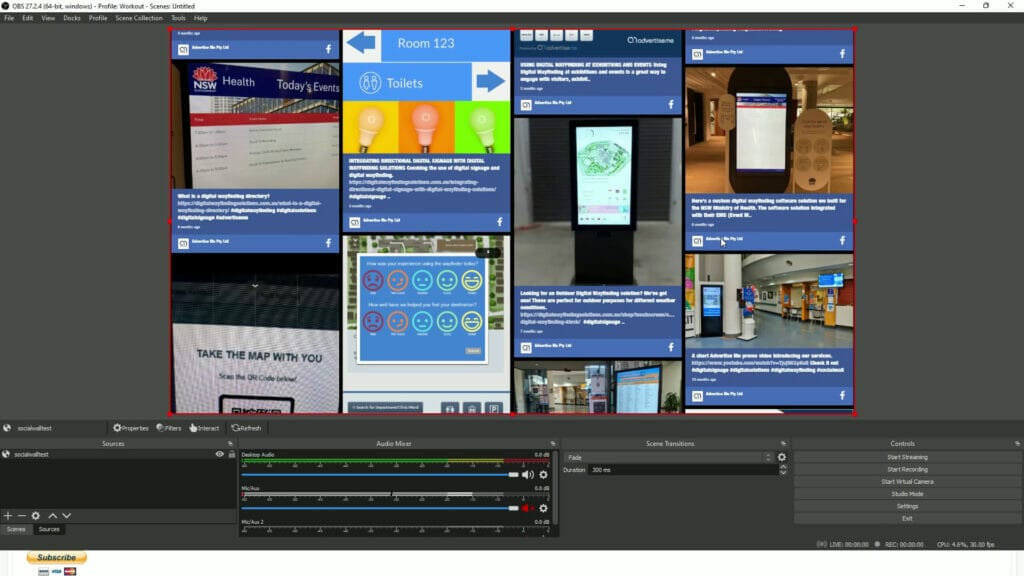
Here’s a video to show you how to add the Social Wall to OBS: HOW TO ADD SOCIAL WALL TO A VIDEO STREAM USING OBS