Google just released the new version of Android 11 on the Pixel 2. I just updated my phone and in the list of new features, it had Build-in screen recording. I was intrigued as I have been using a third-party app to do the screen recording on Android 10 so having a built-in record would be perfect.
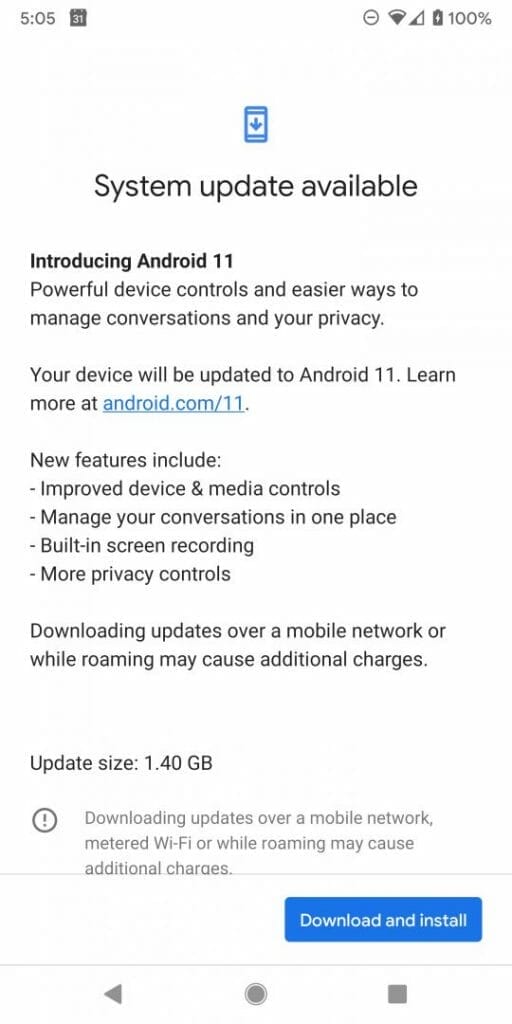
Some of the other new features include:
- improved device and media controls
- manage your conversations in one place
- more privacy
For a detailed list you can visit android.com/11
In order to use the screen recorder feature on Android 11, follow these steps:
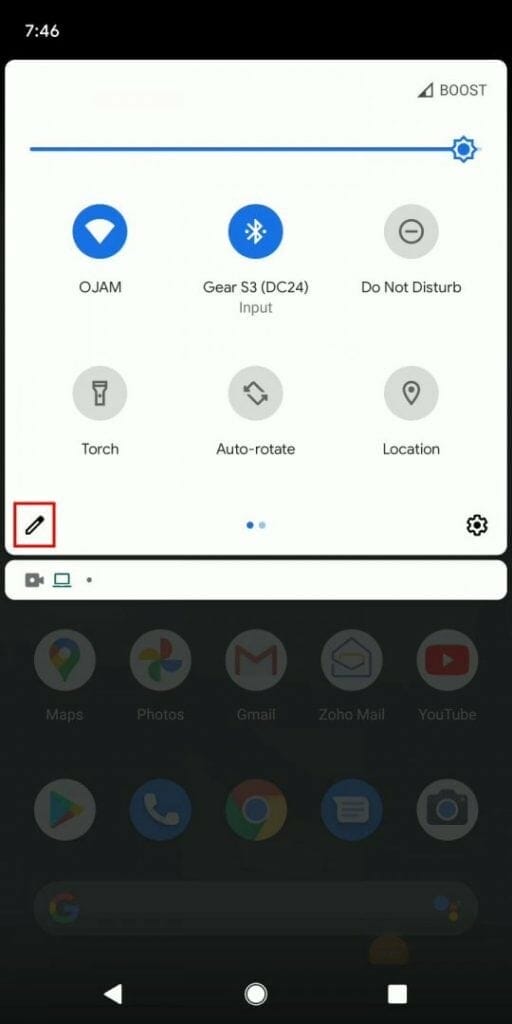
- Flick down to view the quick settings menu and tap on the edit button
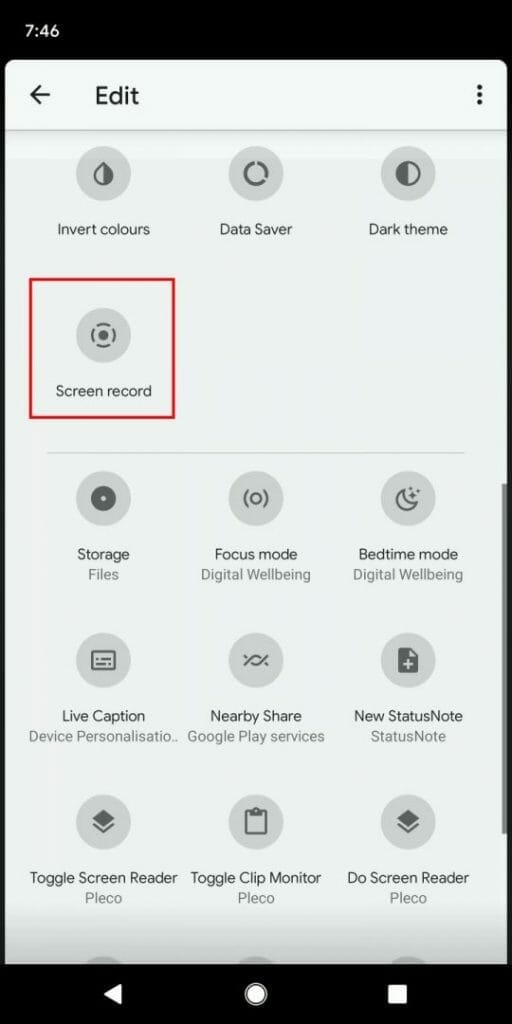
- Find the Screen Record tile, select and hold the tile and move it to the top
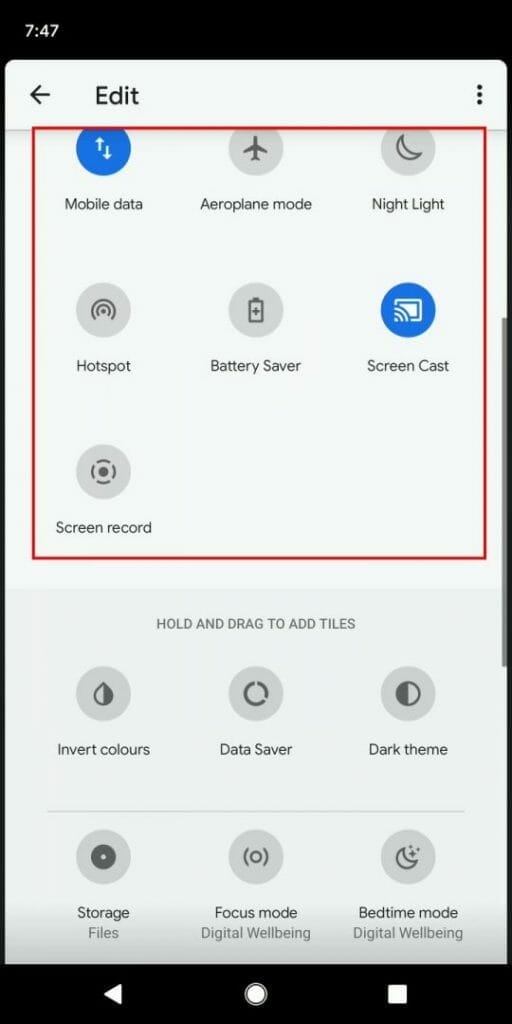
- The Screen Record tile will now be located in the main quick settings menu. I placed it as a last tile so I needed to wipe right a few times.
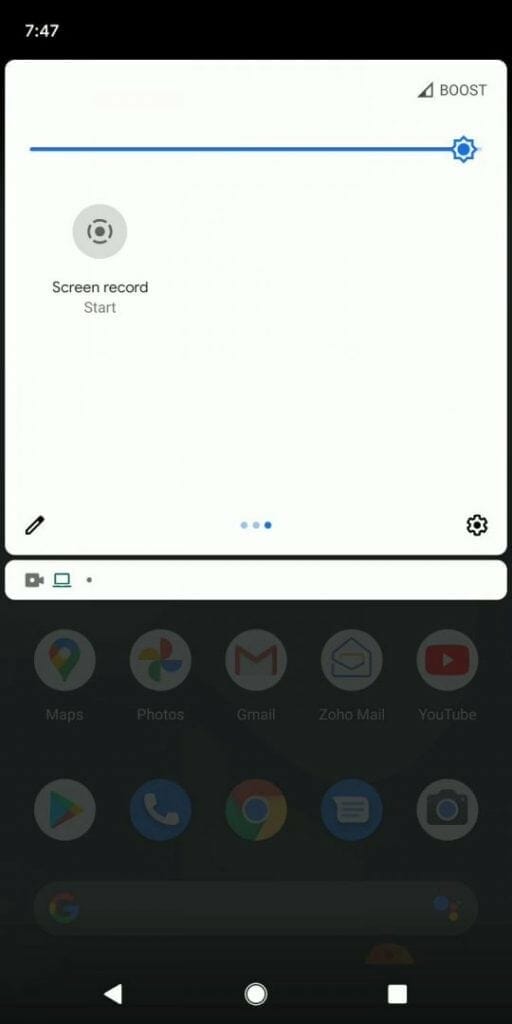
To start recording the mobile screen press the Screen Record start and the menu below will be displayed. Select the options you want to enable. Just take note of the message: “While recording, Android System can capture any sensitive information that’s visible on your screen or played on your device. This includes passwords, payment info, photos, messages and audio.”
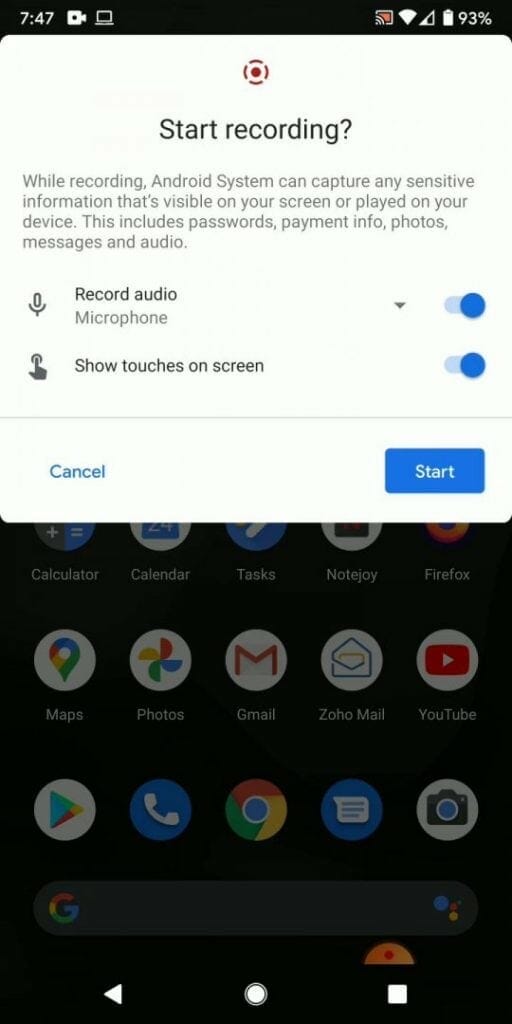
A countdown from 3, will be displayed on the status bar
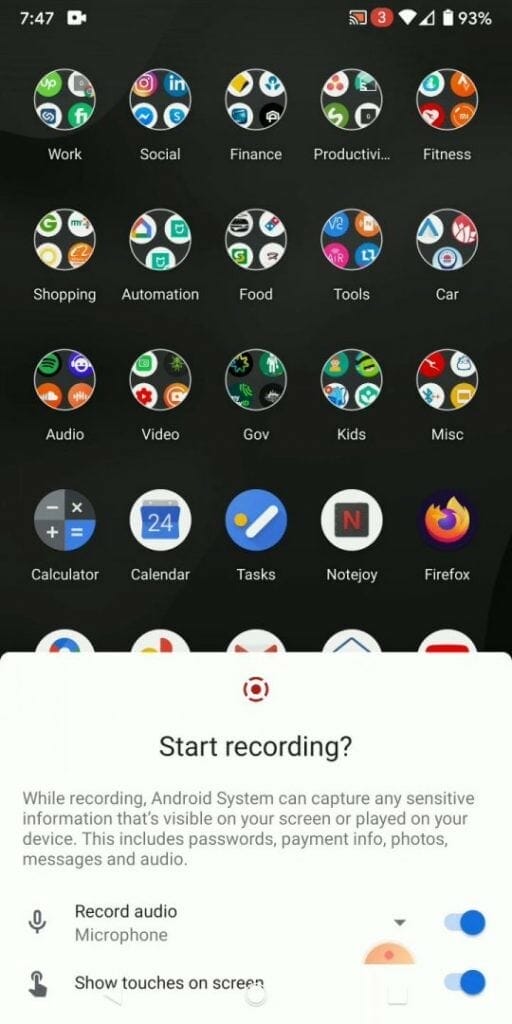
Android will start recording and the video will be saved in the Movies folder in Google Photos.
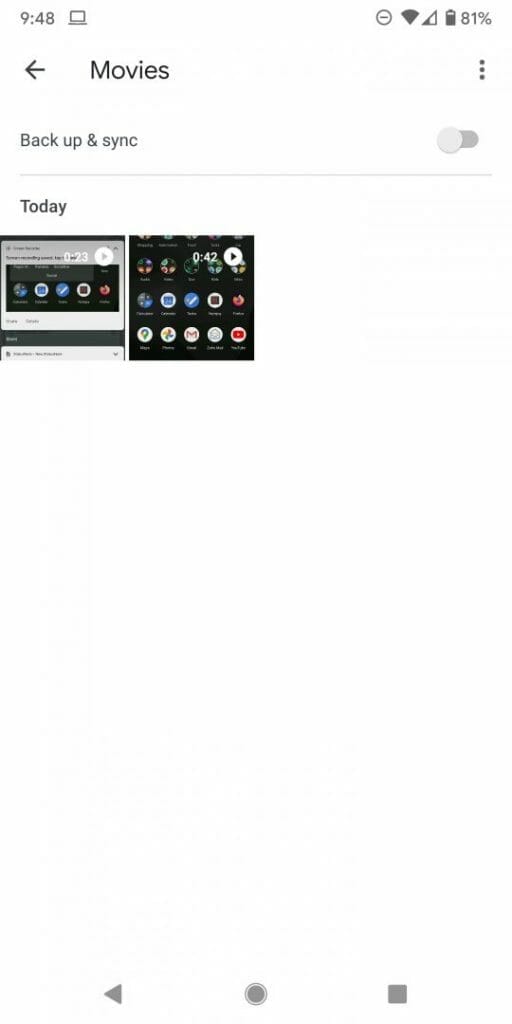
That’s it. You can then edit the video directly on the Android device or if you backup your images and videos to Google Photos on the cloud, then you can download the video and use a Video Editing tool on your computer.
Here’s the video instructions on How to Screen Record on Android 11:
My recommendation is to always review and edit the screen recording before uploading the video to a social media platform or video hosting platform.